Thursday, January 28, 2016

Add custom scripts in AppxManifest.xml file using App-V 5.1 Sequencer

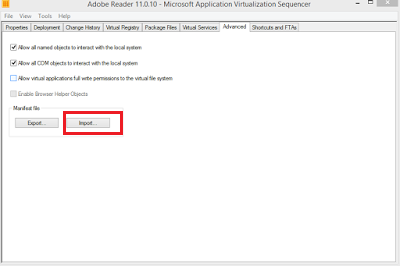
In the Package editor under advanced tab, you can see the Manifest file tab which has been introduced in App-V 5.1. This doesn't exist in earlier versions of App-V. Using this tab, you can export or import the AppxManifest.xml file.

Earlier if we want to do any custom changes we have to edit the deploymentconfig or userconfig.xml file(for adding scripts, editing FTA's etc). App-V 5.1 provides advanced way to edit those changes within the AppxManifest.xml.

To do so, click on export as highlighted below in the Manifest file tab. This will export the AppxManifest.xml file to the local machine. choose the destination and click on save.

Open the exported AppxManifest.xml using AppVManifestEditor. You can download the tool from here AVME

AVME is a simple yet powerful tool to edit the AppxManifest file.My recommendation is not to edit the AppxManifest file manually.

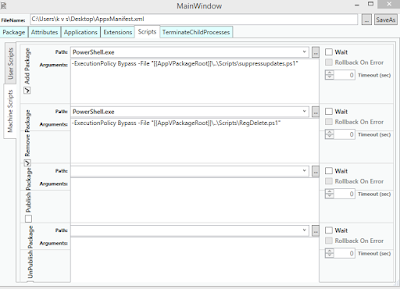
After opening the file using AVME,you can select the checkbox on left hand side to enable the type of script you want(Machine or User), then enter the Path (Powershell.exe) and Arguments field. After editing, save the file using the SaveAs button found at the top right side.


The output of the AppvManifest.xml will be like this.


In the Package Editor, select Import and choose the modified AppxManifest.xml file and select save in the sequencer.

This will create the virtual package with inbuilt scripts in the AppxManifest.xml file.

Tuesday, January 12, 2016

Possible reasons for App-V 5.0 sequencer crash

Recently I came across a question in TechNet about App-V 5.0 Sequencer getting crashed when saving a package and its possible reasons. In this blog I am listing out the possible reasons for sequencer crash and its solutions provided from other App-V techies.


First and foremost it's always  a good start to check in the event log when ever there is an issue. Check the screenshot as where to look for sequencer log entries. Always enable show analytic and debug logs from view menu.


1. rels files:


The App-V 5.0 sequencer fails to sequence if there is any .rels files present in the package.
You can identify a relationship part by the presence of a file with a ".rels" file extension in a folder named "_rels".
To know more check the link from Microsoft.
https://support.microsoft.com/en-us/kb/2843030


2. Invalid manifest detected:


Missing or invalid ProgId entries might also cause sequencer to crash with Invalid manifest detected error log.
Check the link from Dan Gough.
http://packageology.com/2014/08/sometimes-fix-crashing-sequencer-imgburn-recipe/


3.Backslash:

AppxManifest.xml schema does not allow backslashes in ProgId names. If found it leads to sequencer crash.


A manifest document failed validation against the schema(s).
 DOM Error: 0xC00CE169
 Reason: ‘Blackbaud.Ext\RE70\RE7’ violates pattern constraint of ‘[^\\]*’.
The element ‘{http://schemas.microsoft.com/appv/2014/manifest}ProgId’ with value ‘Blackbaud.Ext\RE70\RE7’ failed to parse.
Credit - Trentent & Dan Gough


4. Number of fonts:

There’s a limit of 700 fonts in a single AppV 5.0 SP3 package.
A manifest document failed validation against the schema(s).
 DOM Error: -1072898028
 Reason: Element ‘{http://schemas.microsoft.com/appv/2014/manifest}Font’ is unexpected according to content model of parent element ‘{http://schemas.microsoft.com/appv/2014/manifest}Fonts’.
Check Tim Mangan research paper for more details.
www.tmurgent.com/AppV/images/WhitePapers/Research_Fonts.pdf


5. Change from VFS to PVAD:


Try changing to PVAD during sequencing. This might some time resolve the issue.


6. Long paths:


Check for long paths in the package editor before saving.


7. Missing Language pack:


Sequencer might crash if there is any missing language pack. To know more check this link.
http://www.peppercrew.nl/index.php/2013/11/microsoft-app-v-5-0-sp1-sequencer-error-while-saving-package/

http://www.daniel85.ch/?p=1694

8. Shortcut names that end with a space:


Some times (not in all the cases) if there is a space in the shortcut at the end, it will lead to issues.


9.Manufacturer doesn't support App-V:

Some applications do not support App-V sequencing and causes sequencer to crash. In this case, there is no way to sequence it as manufacturer doesn't support App-V. It always a good approach to check with the manufacture in this scenario.


If you are not able to find any possible reason,then it is always recommended to raise a support ticket with Microsoft App-V team.

Monday, December 14, 2015

MS office 2016 error - Either there is no default mail or the current mail client cannot fulfill the messaging request

When you try to send a file through mail by right clicking a file - sendto- mail recipient, the below error occurs.


Solution:

1. Open registry by typing regedit in run.
2. Search for the office productguid in HKEY_CLASSES_ROOT\Installer\Components\


3. Give read access to the Everyone.


Now when you try to send a file through mail, MS outlook will launch as the default mail recipient.

Thursday, November 26, 2015

UAC and App-V 5.0 Demystified

There are some methods through which we can suppress UAC prompts when virtualizing using
App-V 5.0. You can try the below methods which ever suits your need.

1. SET __COMPAT_LAYER:

Edit the sequenced shortcut and add the below command.
cmd.exe /c “SET __COMPAT_LAYER=RunAsInvoker & START Appname.exe”


Note: There is a space in between SET and __COMPAT_LAYER. If you didn't leave any space it will throw an error.

"SET' is not recognized as an internal or external command.

2. Registry Method:

Right click on the shortcut and select properties-compatibility-privilege level- run as admin-apply. This will create a registry entry in the HKCU\HKLM based upon User/Machine selection.

HKEY_LOCAL_MACHINE\SOFTWARE\Microsoft\WindowsNT\CurrentVersion\AppCompatFlags\Layers (or)

HKEY_Current_User\SOFTWARE\Microsoft\WindowsNT\CurrentVersion\AppCompatFlags\Layers


Export the registry key and add it in the deployment config file and register it in the local machine.


NOTE: Enable script execution prior to adding the virtual package.

Set-AppVClientConfiguration –EnablePackageScripts 1

3. SHIMS:

Using Application compatibility toolkit, we can create shims to suppress the UAC prompt for an application.Install the ACT tool first and open the 32 bit compatibility administrator (since we are going to create shim for a 32 bit application).

Click on New Database - Create new- Application fix.


Select the required compatibility mode.In this example we have used RunAsInvoker.


Click Next.


Click finish to create the .sdb file.After creating open the package in the sequencer machine to add this .sdb file under scripts folder using package editor.


Save the package.Now edit the deployment config.xml file and add the script to trigger the shim database installation.


NOTE: Enable script execution prior to adding the virtual package.

Set-AppVClientConfiguration –EnablePackageScripts 1

4. Manifest File:( I usually go with this only at the worst case if none of the above methods helped me)

Usually developers create a manifest file which tells the executable as how to request the execution.
There are two types of manifest file. They are Internal/External manifest file.


If the application has an external manifest file then it is easy to edit it and suppress the UAC prompt.
Usually external manifest will have the same executable name ending with .manifest.


We can edit the file using notepad and change the requestedExecutionLevel from "requireAdministrator"  to "asInvoker" or remove the requestedExecutionLevel tag completely.By this way we can easily suppress UAC.


If there is no external manifest file seen, then it will be an embedded one within the executable. Use Resource hacker or PEExplorer tool to open up the executable. After opening you can see the requestedExecutionLevel tag in the manifest. In the example below I used Resource hacker tool to open the shortcut exe.


Change the level to "asInvoker" or you can completely remove the  requestedExecutionLevel tag and compile it and save. After doing these steps manually,test once. Now your application should work fine without any UAC prompt.

If there is no external manifest file or embedded one, then you can create a new external manifest file with the same name as the executable ending with .manifest.
For example, if the main executable name is abc.exe, then the external manifest file name should be abc.exe.manifest and should be kept in the same folder. Edit the abc.exe.manifest file and create the <requestedExecutionLevel> with asInvoker as mentioned earlier.


NOTE: From vista or above if the .exe already has embedded manifest, then the external manifest will be ignored and embedded manifest is used. (This is opposite from XP case. on XP, external manifest is used and internal is ignored.)

5. SET__COMPAT_LAYER Environment Variable:

This is pretty old way. During monitoring with the sequencer, open up a elevated CMD and type in the below command.

setx __COMPAT_LAYER RunAsInvoker /m

setx = creates or modifies environment variables.
__COMPAT_LAYER = Variable.
RunAsInvoker = value.
/m = specifies that variable should be set for system wide(HKLM)

This creates an environmental variable in the package. In the configuration phase edit the shortcut and add c:\windows\system32\cmd.exe /c "START abc.exe" or c:\windows\system32\cmd.exe /c START "" abc.exe.


After publishing, the shortcut will look like this. When launching, it will open up CMD which will have the environment variable loaded inside and then start the main exe. Now the shortcut will work without UAC.

                         
Thanks to Dan Gough and other App-V MVP's for providing different solutions which helped me to write up this blog.