Showing posts with label Automation. Show all posts

Monday, November 14, 2016

TweakAppv - Change PackageID, VersionID, Version to a predefined value

If you want to change the Package Version or VersionID, you can do it by exporting the AppxManifest.xml file from App-v 5.1 sequencer and do the changes. But after importing it back and saving the package, those values changes to some other random values. The version also gets incremented. So how to set them to a predefined value?


Advanced Installer has released a free tool called Tweakappv. It can be downloaded from the below link.It makes things so easy that you can also do a batch conversion for bulk packages.


http://www.advancedinstaller.com/appv-automation.html


Change Version:


Follow the below command to change the version value to a predefined value.
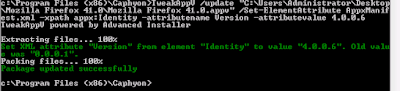


You can note that after publishing the version has been changed to the value 4.0.0.6 which we had set using Tweakappv.
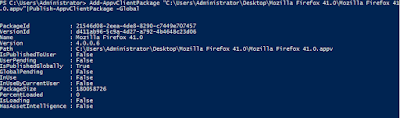


Change VersionID:


Follow the below command to change the VersionID to a predefined value.
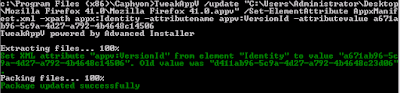


Change PackageID:


Follow the below command to change the PackageID to a predefined value.
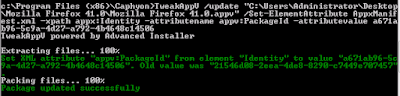


NOTE - The value you provide for -attributename is case sensitive.

Wednesday, August 26, 2015

Powershell to Automate Publishing of Bulk App-V 5.0 or 5.1 packages to a User in a Standalone environment.

In a standalone environment, where there are many App-V 5.0 or App-V 5.1 packages that needs to be published and mounted to a user in order to test the applications, it’s quite hard to open up powershell and type in the commands each time. This is quite time consuming and a repeated job. 
With this powershell script, the job can be made easy by publishing these BULK packages. This powershell script code contains commands to ADD the App-V packages along with their respective DeploymentConfig.xml file and Publish them along with their UserConfig.xml file and at last Mount them successfully.
User has to first place all the App-V packages in a single folder and then edit the powershell script by giving in the exact folder path. 
The powershell code will first load the AppvClient module.

 #Import App-V Client Module 
 Import-Module AppvClient 
  
Next it will enable the execution of scripts present in the dynamic configuration files.
  
#Enable execution of scripts 

Set-AppvClientConfiguration -EnablePackageScripts
  
NOTE: User has to edit the powershell code and give in the exact path where the packages are located. Say example, you have kept all the App-V packages in C:\App-V packages folder, then you need to edit the script and give in the exact C:\App-V packages path in the $appvfolder variable . 
# specify the folder where bulk App-V packages are kept 
$appvfolder = "C:\App-V packages" 
  
After this, the code fetches files from the given folder and executes the Add-AppvClientPackage, Publish-AppvClientPackage and Mount-AppvClientPackage.
The resrtriction policy has to be changed in order to make the script to work properly. 
To download the Powershell script click HERE

Powershell to Automate Publishing of Bulk App-V 5.0 or 5.1 packages Globally in a Standalone environment


In a standalone environment, where there are many App-V 5.0 or App-V 5.1 packages that needs to be published and mounted in order to test the applications, it’s quite hard to open up powershell and type in the commands each time. This is quite time consuming and a repeated job.

With this powershell script, the job can be made easy by publishing these BULK packages. This powershell script code contains commands to ADD the App-V packages along with their respective DeploymentConfig.xml file and Publish them  and at last Mount them successfully.

The powershell code will first load the AppvClient module.

#Import App-V Client Module

Import-Module AppvClient


Next it will enable the execution of scripts present in the dynamic configuration files.


#Enable execution of scripts

Set-AppvClientConfiguration -EnablePackageScripts 1


NOTE: User has to edit the powershell code and give in the exact path where the packages are located. Say example, you have kept all the App-V packages in C:\App-V packages folder, then you need to edit the script and give in the exact C:\App-V packages path in the $appvfolder variable .

# specify the folder where bulk App-V packages are kept

$appvfolder = "C:\App-V packages"  

After this, the code fetches files from the given folder and executes the Add-AppvClientPackage, Publish-AppvClientPackage and Mount-AppvClientPackage


The resrtriction policy has to be changed in order to make the script to work properly.
To download the Powershell script click HERE