Sunday, July 21, 2024

W365 : Recovery from Crowdstrike BSOD using restore points

Now that crowdstrike update have caused a huge caos around the world,  Windows 365 cloud pc's were also impacted. Though 2-3 restarts fixed for most cloud pc's,  some couldn't recover and started displaying below error when accessing. 

"We couldn't connect because there are currently no available resources. Try again later or if this keeps happening ask your admin or tech support for help"


Restoring your Windows 365 Cloud PC to a previous known working state can be a lifesaver when troubleshooting issues or undoing unwanted changes. With Intune, managing and restoring to a specific restore point is straightforward. Follow these steps to utilize up to 14 available restore points for your Windows 365 Cloud PC.

Prerequisites

- Ensure you have administrative access to Intune.

- Verify that your Windows 365 Cloud PC has restore points created.

Step-by-Step Guide

1. Log in to the Intune Admin Center

2. Select Your Device

   - Go to Devices > Windows 365.

   - Select the specific Cloud PC you want to restore.

3. Access the Restore Points

   - In the device overview pane, click on Restore tab
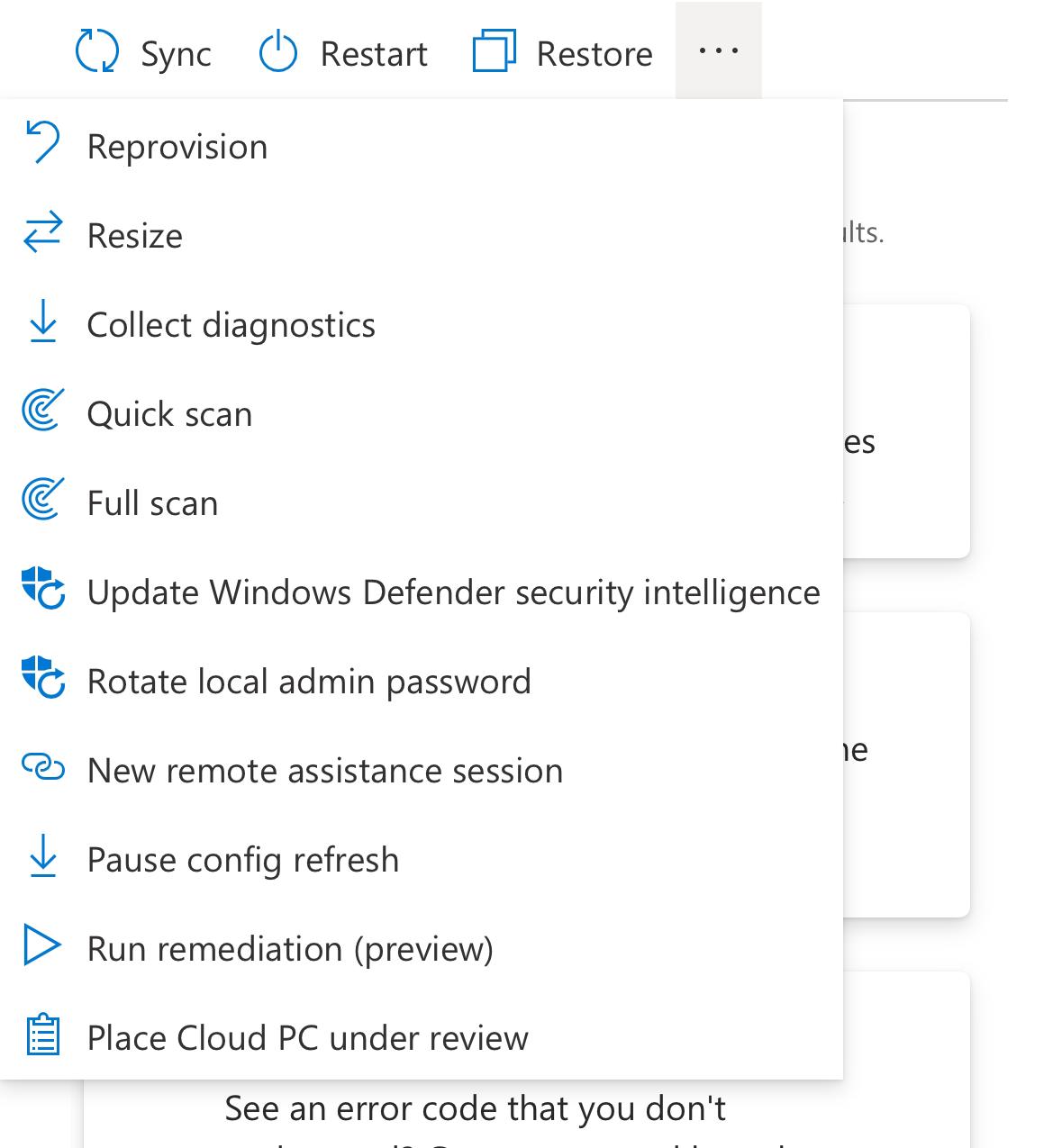

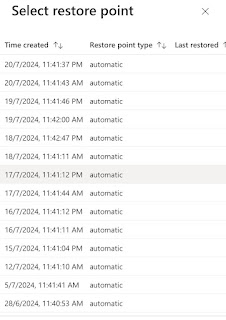
   - You will see a list of available restore points. Note that up to 14 restore points may be available, depending on the device's configuration and usage.
4. Choose the Restore Point

   - Review the restore points by date and description to find the desired state prior to CS impact. 

   - Select the restore point you want to use.

5. Initiate the Restore Process

   - Click on Restore

   - Confirm your choice when prompted. This will start the restoration process to the selected point.

6. Monitor the Restoration

   - The Cloud PC will undergo the restoration process. This might take some time, depending on the size of changes and data involved.

   - You can monitor the progress through the Intune admin center.

7. Verify the Restoration

   - Once the process is complete, log in to the Cloud PC to verify that it has been restored to the desired state.

Important Considerations

Data Loss: Restoring to a previous point will undo changes made after that point. All apps,  data will be lost during this restore to previous state. 

Official source - https://learn.microsoft.com/en-us/windows-365/enterprise/restore-overview

CS BSOD recovery tool

CS BSOD recovery tool

This tool  from Microsoft will avoid the manual steps that we do in cmd prompt. This will also require bitlocker recovery key. 


This tool can be used in to speed up the recovery by just omitting the manual cmd commands.

Wednesday, July 10, 2024

w365: Windows installer repair now prompts for UAC

Recently there have been a change in behaviour for Windows Installer application repair option. It started prompting for UAC. Earlier this doesn't use to happen.

So what happened?

In the July 2024 OS updates for Windows 10/11

July 9, 2024—KB5040427 (OS Builds 19044.4651 and 19045.4651) - UAC is now required for windows installer repair option and applicable to below 

Windows 10, version 21H2 editions
Windows 10 Enterprise LTSC 2021 and 
Windows 10 IoT Enterprise LTSC 2021

Earlier when you click on a Windows installer application for repair, the User Account Control (UAC) does not prompt for your credentials.

After you install this update, the UAC will prompt for users.

To turn off the UAC prompt, set the HKEY_LOCAL_MACHINE\SOFTWARE\Policies\Microsoft\Windows\Installer\DisableLUAInRepair registry value to 1.

Update (14/07/24): This also seems to impact windows 11

https://support.microsoft.com/en-gb/topic/july-9-2024-kb5040435-os-build-26100-1150-954078e3-6c6b-4b6d-885e-f5aa534524a6

https://support.microsoft.com/en-gb/topic/july-9-2024-kb5040442-os-builds-22621-3880-and-22631-3880-0864308e-61cc-413b-8194-0294331aba52


Monday, July 8, 2024

w365 - How to allow local admin access inside windows 365 cloud pc

Enable Local Admin user settings:

Open Intune and navigate to Devices>Windows 365>User settings and click on Add button and turn on Enable Local admin settings to Yes and assign it to the group that contains the cloud pc's for which local admin access needs to be enabled.


PowerShell Scripts:

Windows365-Scripts/W365-AdminPrompt at main · app2pack/Windows365-Scripts · GitHub

Windows365-Scripts/W365-AdminPrompt-SystemContext.ps1 at main · app2pack/Windows365-Scripts · GitHub