Showing posts with label Windows 365. Show all posts

Tuesday, March 24, 2026

Windows 365 - Cloud Apps now support APPX and MSIX applications

Cloud Apps for Windows 365 have expanded their capabilities by adding support for APPX and MSIX applications, in addition to traditional Win32 apps. This enhancement allows administrators to discover and publish a broader range of applications, including modern apps such as Microsoft Teams and the new Outlook.

With this update, Cloud Apps provisioning policies can surface more application types, enabling greater flexibility in how apps are delivered to users. For environments that already have Cloud Apps configured, reprovisioning existing policies is required to enable the discovery of APPX and MSIX applications. Once reprovisioned, these apps appear seamlessly alongside existing Win32 applications.

The overall management experience remains unchanged. Admins continue to use the same discovery, publishing, and assignment workflows, while gaining the ability to deliver modern Windows applications through Cloud Apps.

Real‑world use case

Consider an organization using Windows 365 Cloud PCs for contractors, temporary staff, or front‑line workers. Previously, IT teams may have relied on Win32 packages or full desktop images to provide access to essential tools. Modern applications such as the new Outlook, Microsoft Teams (MSIX‑based), or line‑of‑business apps built using MSIX may not have been easily discoverable through Cloud Apps.

With APPX and MSIX support enabled, IT can now publish these modern apps directly as Cloud Apps without re‑engineering deployment methods. For example, a contractor accessing a Cloud PC can launch Microsoft Teams as a Cloud App without needing a full desktop session. This reduces onboarding time, improves performance, and ensures users always access the supported application version.

This is especially valuable for hybrid or distributed teams where users need quick access to specific apps rather than an entire virtual desktop environment.

Benefits for IT teams

One of the biggest benefits for IT teams is improved application coverage. Many modern Microsoft and third‑party apps are now built using APPX or MSIX packaging. Supporting these formats removes a long‑standing limitation and reduces the need to maintain alternate Win32 versions or workarounds.

Operational efficiency also improves. Since the publishing and management workflow remains the same, IT teams do not need additional training or tooling. Existing Cloud Apps policies can simply be reprovisioned, allowing teams to extend functionality without redesigning their deployment strategy.

Security and consistency are another key advantage. MSIX apps are containerized and follow modern Windows security standards, such as clean installs, reliable uninstall behavior, and reduced risk of system‑level changes. By delivering these apps through Cloud Apps, IT teams maintain better control over what users can access while ensuring compliance with organizational policies.

Finally, this update supports a more flexible end‑user experience. Instead of deploying full desktops for lightweight workloads, IT teams can offer app‑only access for specific roles. This can help reduce licensing costs, simplify access models, and align Windows 365 deployments more closely with actual business needs.

Friday, March 20, 2026

Windows 365 Remote Desktop Shows Only a Black Screen? Here’s the Quick Fix

Sometimes when connecting to a Windows 365 Cloud PC using windows App, the session connects successfully—but all you see is a black screen. You may try refreshing, reconnecting, or waiting for several minutes, but the screen remains blank.

This is a known and occasionally encountered issue, and thankfully, the fix is simple.

What Doesn’t Work

  • Refreshing the session
  • Disconnecting and reconnecting
  • Waiting for the screen to load

If none of these resolve the issue, the Cloud PC itself likely needs a restart.

✅ The Fix: Restart the Windows 365 Cloud PC

  1. Open the Windows App (Windows 365 app).
  2. Locate your available Windows 365 Cloud PC.
  3. Click the three dots (⋮) next to the Cloud PC.
  4. Select Restart.

The restart process may take a few minutes. Once completed, reconnect to the Cloud PC—you should now be able to log in normally without the black screen.

What If You Don’t See the Restart Option?

In some locked-down or restricted environments, the restart option may not be visible to end users. In this case:

  • Contact your IT support team
  • They can restart the Cloud PC from the Intune Admin Center → Windows 365 blade

After IT performs the restart, the Cloud PC should work fine.

Final Thoughts

A black screen on Windows 365 can be frustrating, but it’s usually not a serious issue. A simple Cloud PC restart resolves it in most cases. If you’re restricted from restarting it yourself, your IT team can handle it quickly through Intune.

Thursday, February 5, 2026

Windows 365: Fixing Microsoft Teams performance issue


Fixing Microsoft Teams Performance Issues in Windows 365

Microsoft Teams is a critical collaboration tool for many organizations. However, ensuring optimal performance on Windows 365 Cloud PCs or Azure Virtual Desktop (AVD) environments often requires specific configurations. This article provides a step-by-step guide to verify and enable Teams SlimCore Media Optimization for improved performance.

Step 1: Verify Teams Media Optimization Type

Before making any configuration changes, verify that your Teams client is using the new SlimCore Media Optimization architecture. Follow these steps:

  1. Open the Microsoft Teams client.
  2. Click on the ellipsis (...) on the top bar.
  3. Navigate to Settings > About.
  4. Check the optimization type listed under the Teams version:
    • AVD SlimCore Media Optimized: means it’s new optimization based on SlimCore.
    • AVD Media Optimized: means it’s  Legacy optimization based on WebRTC.

Step 2: Enable Teams Media Optimization

To enable media optimization for Teams in Windows 365 or AVD environments, configure a registry key on each session host if it’s not already present. This key will be present if it’s already optimised. If not, you need to configure.

Registry Configuration Steps:

  1. Open Registry Editor as an administrator.
  2. Navigate to the following path:
    HKEY_LOCAL_MACHINE\SOFTWARE\Microsoft\Teams
    
  3. If the Teams key doesn't exist, create it.
  4. Add the following value:
    • Name: IsWVDEnvironment
    • Type: DWORD
    • Value: 1


Alternatively, you can automate this process using a PowerShell script.

You can find the Powershell script in my GitHub Repository 

If Teams is not optimised, you can see a Not optimised banner at top of the Teams. You can click it and select optimise virtual desktop and restart and Teams should be automatically optimised for media audio and video quality inside windows 365.


https://learn.microsoft.com/en-us/azure/virtual-desktop/teams-on-avd#enable-media-optimization-for-teams

Monday, January 12, 2026

Windows 365 - Fix Microsoft Teams error code 2000


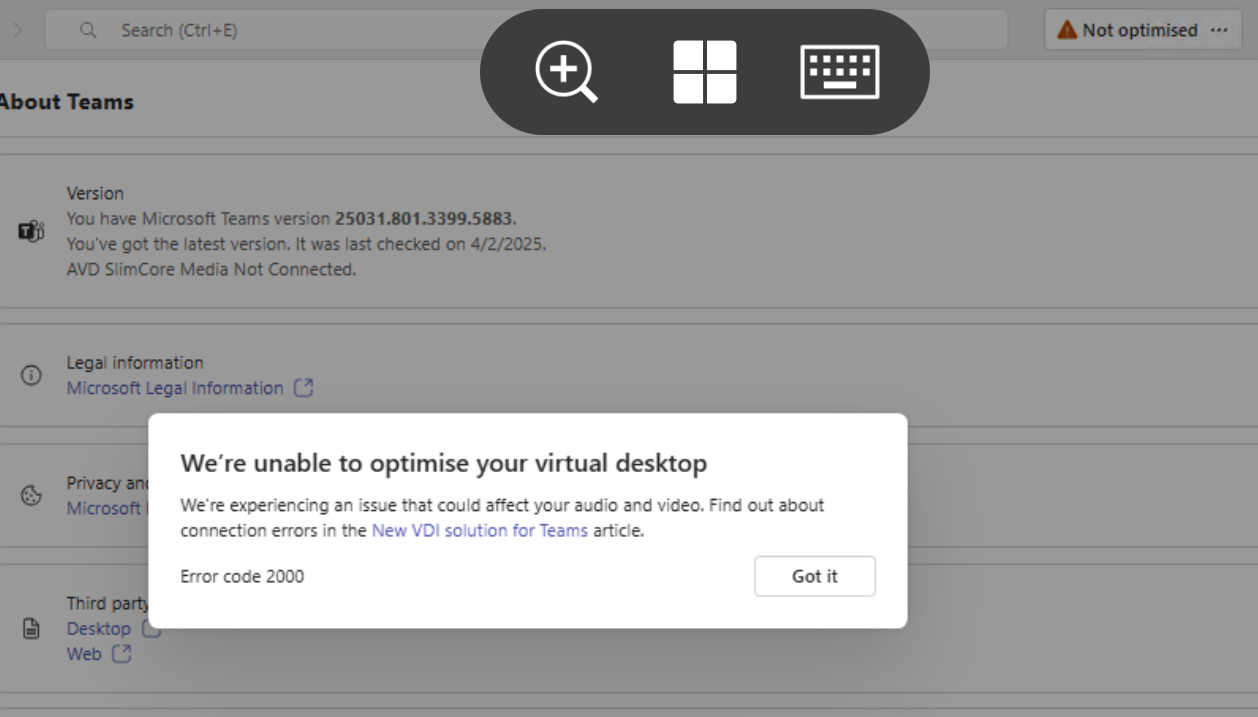
Recently I started to see Microsoft Teams showing Not Optimised banner at the top of the Teams. When clicked on it, it showed to optimize and restart. But when clicked on it, it started to show Error Code 2000. 

Checked in settings and it shows AVD slimcore media Not connected.

The error code 2000 means optimization is not enabled.

Tried to follow the steps outlined in my previous blog https://app2pack.blogspot.com/2025/02/MicrosoftTeams-Performances-Windows.html but it didn’t help. 

Followed the steps mentioned in the official MS article but it also didn’t work. Tried to force quit Teams manually and launch and still it was showing the same error and not optimized banner.

Finally Tried to restart the Windows 365 cloud pc from Windows App and this time after the restart and when clicked on Not optimized banner, it automatically optimized and prompted me to restart the Teams twice. After restarting Teams twice, the banner disappeared. 

Monday, December 1, 2025

W365: Fix Unable to connect Error code 0x5000056

When trying to access your assigned windows cloud pc through windows app in Windows device or any device - in this case ios windows App, you will be promoted with the unable to connect with error code 0x5000056


Even when you try to restart your cloud pc by clicking on three dots, it will show restart attempt failed. When you try to do inspect connection, it will also show as failed.

To fix this issue, follow the below steps. 

Click on your profile and select troubleshooting and select Reset subscription like below.


Click on reset subscriptions. This will delete your assigned windows 365 cloud pc from windows app. After this, click on + icon and add the cloud pc once again by signing into work or school account and entering your credentials.


Friday, November 7, 2025

Windows 365: How to use Bulk device actions command directly on the Cloud PCs that aren't available report

Managing Cloud PCs has become more efficient with the introduction of applying Bulk Device Actions directly on the Cloud PCs that aren't available report. 

Check for the official Windows 365 What's New reference here.

This feature allows administrators to perform actions like restoring, restarting, troubleshooting, and cross-region disaster recovery options directly from the report.

For detailed guidance about the report, visit: Cloud PCs that aren't available report.

Key Considerations:

  • The report reflects conditions from the past 5 to 15 minutes, meaning some Cloud PCs listed may have already recovered or new issues may not yet appear soon. 

Using Bulk Device Actions:

1. Sign in to Microsoft Intune:

    • Navigate to Reports > Cloud PC Overview > Cloud PCs that aren't available.

2. Apply Filters (Optional):

Narrow down the report data to focus on specific Cloud PCs. 

3. Select Cloud PCs:
  • Select the cloud pc's that need to be actioned.
  • You can choose up to 100,000 devices for bulk management.
4. Perform Actions:
  • Navigate to Bulk device actions and select the desired action. 

5. Complete Action Steps:
  • Follow the prompts to finalize the chosen action.
6. Processing Time:
  • Completion time varies based on the action type and number of devices.
7. Report:
These enhancements make managing large-scale Cloud PC environments more effective and less time-consuming.

So why wait,  go and explore now πŸ”œ

Monday, October 6, 2025

Windows 365 Cloud PC on the Go: A Seamless Experience with iPhone 15 and Dell 14” Portable Monitor

 As someone constantly exploring new ways to make work more flexible and mobile, I recently tested accessing my Windows 365 Cloud PC using the Windows App 11.0.2 on an iPhone 15, connected to a Dell 14-inch Portable Monitor (P1424H) via USB-C cable. 

The experience? Absolutely amazing.

Instant External Display Support

The moment I connected my iPhone 15 to the Dell portable monitor using the provided USB-C cablesomething incredible happened:

  • The Windows App on my iPhone went black, and the entire Cloud PC session automatically transitioned to the external display.
  • No additional configurations were needed—it just worked!

Performance and Usability

Even though I was running a Cloud PC session remotely, the performance was surprisingly smooth:

  • Microsoft Teams calls worked flawlessly—no noticeable lag or quality drop.
  • Multi-tasking felt natural, with the full Windows experience on a large screen.
  • Touch gestures on the iPhone worked as expected, making navigation easy.

Why This is a Game Changer

This test proved how Windows 365 Cloud PC is truly device-agnostic and travel-friendly. No need to carry a laptop—just a portable monitor and an iPhone:
✅ Work from anywhere—hotel rooms, cafΓ©s, airport lounges.
✅ Minimal setup—plug in and start working instantly.
✅ Full Windows experience on any screen, with external monitor support.

For professionals constantly on the move, Windows 365 + iPhone + Portable Display is a powerful combination. Just connect and use your Cloud PC wherever you are!

Have You Tried This Setup?

If you've used Windows 365 Cloud PC in a similar mobile setup, I'd love to hear about your experience! Would you consider replacing your laptop with a portable monitor and smartphone for remote work? Let’s discuss it! πŸš€

Thursday, September 11, 2025

Fixing Microsoft Teams Performance Issues in Windows 365


Fixing Microsoft Teams Performance Issues in Windows 365

Microsoft Teams is a critical collaboration tool for many organizations. However, ensuring optimal performance on Windows 365 Cloud PCs or Azure Virtual Desktop (AVD) environments often requires specific configurations. This article provides a step-by-step guide to verify and enable Teams SlimCore Media Optimization for improved performance.

Step 1: Verify Teams Media Optimization Type

Before making any configuration changes, verify that your Teams client is using the new SlimCore Media Optimization architecture. Follow these steps:

  1. Open the Microsoft Teams client.
  2. Click on the ellipsis (...) on the top bar.
  3. Navigate to Settings > About.
  4. Check the optimization type listed under the Teams version:
    • AVD SlimCore Media Optimized: means it’s new optimization based on SlimCore.
    • AVD Media Optimized: means it’s  Legacy optimization based on WebRTC.

Step 2: Enable Teams Media Optimization

To enable media optimization for Teams in Windows 365 or AVD environments, configure a registry key on each session host if it’s not already present. This key will be present if it’s already optimised. If not, you need to configure.

Registry Configuration Steps:

  1. Open Registry Editor as an administrator.
  2. Navigate to the following path:
    HKEY_LOCAL_MACHINE\SOFTWARE\Microsoft\Teams
    
  3. If the Teams key doesn't exist, create it.
  4. Add the following value:
    • NameIsWVDEnvironment
    • TypeDWORD
    • Value1


Alternatively, you can automate this process using a PowerShell script.

You can find the Powershell script in my GitHub Repository 

If Teams is not optimised, you can see a Not optimised banner at top of the Teams. You can click it and select optimise virtual desktop and restart and Teams should be automatically optimised for media audio and video quality inside windows 365.


https://learn.microsoft.com/en-us/azure/virtual-desktop/teams-on-avd#enable-media-optimization-for-teams

Wednesday, September 10, 2025

Recovering Windows 365 Enterprise Cloud PCs after license expiration (preview)

In large environments, license management isn’t always perfect. Renewals can get delayed due to procurement workflows, billing holds, or simple oversight. In Windows 365 Enterprise, when a license expires, the associated Cloud PC can be automatically deprovisioned. Until recently, once that happened, recovery options were very limited.

Microsoft has now introduced a preview capability that significantly reduces the impact of these temporary licensing gaps. If a Windows 365 Enterprise Cloud PC is deprovisioned specifically because the Windows 365 license expired, the platform retains a recovery snapshot that can be used to restore the Cloud PC after the license is renewed and prerequisites are met.

This recovery experience builds on the point‑in‑time restore capability in Windows 365 Enterprise, allowing admins to restore a Cloud PC back to a previous state instead of starting from scratch.

Real‑world example: Cloud PC removed after a license renewal gap

Consider a consulting team in an enterprise environment where multiple contractors are provisioned Windows 365 Enterprise Cloud PCs for a fixed‑duration project. Licenses for these users are purchased periodically and renewed based on procurement and finance approvals.

What happened

  • A batch of Windows 365 Enterprise licenses reaches its expiration date.
  • Due to a delay in renewal approval, the licenses are not renewed immediately.
  • As a result, one or more Cloud PCs are automatically deprovisioned.
  • The affected users log in the next day and find that their Cloud PC is no longer available.

This situation is more common than it seems and often leads to high‑priority support tickets, even though nothing was intentionally changed by IT.

Why this is painful for IT teams

Without a recovery option, IT is usually forced to provision a brand‑new Cloud PC. This involves redeploying applications, reapplying configurations, verifying access, and guiding the user to resync data from OneDrive or other backup locations. Even when everything works as expected, the user experience is disrupted and productivity is lost.

How this preview feature helps

With the new recovery capability, Windows 365 Enterprise keeps a retention snapshot when a Cloud PC is deprovisioned due to license expiration. Once the organization renews the expired licenses and confirms the Cloud PC still meets eligibility requirements, IT can restore that Cloud PC using the retained snapshot.

This approach allows the user to return to a familiar environment instead of receiving a freshly built Cloud PC. It also avoids unnecessary rebuild effort for IT teams and helps reduce downtime caused by administrative licensing delays.

It’s important to note that this feature applies only to Cloud PCs deprovisioned due to license expiration. It does not apply if a license was manually removed from a user or if the Cloud PC was intentionally deleted or reprovisioned for other reasons.

High‑level recovery flow

From an admin perspective, the recovery process typically looks like this:

  1. Renew the expired Windows 365 Enterprise license (same SKU as before).
  2. Ensure the original provisioning policy and user assignments still exist.
  3. Initiate a restore using the retained snapshot through the Windows 365 restore experience.
  4. The Cloud PC is restored and made available to the user.

This restores the Cloud PC to a known good state captured before it was deprovisioned due to license expiration.

Why this matters for enterprise IT

This feature adds an important safety net for Windows 365 Enterprise environments. Licensing gaps are often operational rather than technical failures, and this recovery mechanism helps avoid unnecessary disruption.

Key benefits include:

  • Reduced operational risk when license renewals are delayed.
  • Improved business continuity with faster user recovery.
  • Less administrative overhead compared to rebuilding Cloud PCs.
  • A more resilient lifecycle model for Cloud PCs aligned with enterprise expectations.

Tuesday, August 5, 2025

Windows 365 - Fix Microsoft Teams error code 2000


Recently I started to see Microsoft Teams showing Not Optimised banner at the top of the Teams. When clicked on it, it showed to optimize and restart. But when clicked on it, it started to show Error Code 2000. 

Checked in settings and it shows AVD slimcore media Not connected.

The error code 2000 means optimization is not enabled.

Tried to follow the steps outlined in my previous blog https://app2pack.blogspot.com/2025/02/MicrosoftTeams-Performances-Windows.html but it didn’t help. 

Followed the steps mentioned in the official MS article but it also didn’t work. Tried to force quit Teams manually and launch and still it was showing the same error and not optimized banner.

Finally Tried to restart the Windows 365 cloud pc from Windows App and this time after the restart and when clicked on Not optimized banner, it automatically optimized and prompted me to restart the Teams twice. After restarting Teams twice, the banner disappeared. 

Tuesday, July 1, 2025

Windows 365: How to use Bulk device actions command directly on the Cloud PCs that aren't available report

 Managing Cloud PCs has become more efficient with the introduction of applying Bulk Device Actions directly on the Cloud PCs that aren't available report. 

Check for the official Windows 365 What's New reference here.

This feature allows administrators to perform actions like restoring, restarting, troubleshooting, and cross-region disaster recovery options directly from the report.

For detailed guidance about the report, visit: Cloud PCs that aren't available report.

Key Considerations:

  • The report reflects conditions from the past 5 to 15 minutes, meaning some Cloud PCs listed may have already recovered or new issues may not yet appear soon. 

Using Bulk Device Actions:

1. Sign in to Microsoft Intune:

    • Navigate to Reports > Cloud PC Overview > Cloud PCs that aren't available.

2. Apply Filters (Optional):

Narrow down the report data to focus on specific Cloud PCs. 

3. Select Cloud PCs:
  • Select the cloud pc's that need to be actioned.
  • You can choose up to 100,000 devices for bulk management.
4. Perform Actions:
  • Navigate to Bulk device actions and select the desired action. 

5. Complete Action Steps:
  • Follow the prompts to finalize the chosen action.
6. Processing Time:
  • Completion time varies based on the action type and number of devices.
7. Report:
These enhancements make managing large-scale Cloud PC environments more effective and less time-consuming.

So why wait,  go and explore now πŸ”œ

Wednesday, June 11, 2025

W365: Windows App MSIX auto-update feature even if MS Store is blocked

 With the latest release of the Windows app 2.0.360.0, if a previous version 2.0.327.0 or higher was downloaded offline as an .msix format and installed, it now supports auto update even if the Microsoft Store app is blocked. 

Earlier this wasn't the case, auto update was not supported and admin have to download the msix new version again and perform the update manually or through Intune.  This was time consuming and we raised a feedback to support auto-update for the manually installed windows app as .msix format even if Microsoft store app was blocked in the enterprise.

Reference - what's new in Windows App

This feedback was properly listned by the Microsoft Product Team and they immediately added this feature to their roadmap and started working on it.  We had a wonderful opportunity to interact with the Microsoft product team through the Microsoft management customer connection program MCCP.  There were couple of focus groups, 1:1, feedback session and infact private previews offered to the members.  And I was also a part in all of these and shared my suggestions and private preview feedbacks. Only after all the feedbacks were positive and all worked well,  this amazing feature got released recently. A big thanks to all the product team members, community participation and Product managers that made this feature available for general public.

If you also like to interact with the product group directly like us then you can join the program by following the registration  link: https://www.aka.ms/JoinCCP (remember that a NDA with Microsoft is a need!)

You can also test this by manually downloading the .msix from here

You can download Windows App outside of the Microsoft Store from the following links:

After installing it,  make sure the Microsoft store app is blocked.  When a new version is released, the existing manually installed windows app will auto update as same like the rollout schedule like it happens in Microsoft store allowed.

Note:

The Windows app checks for updates once every 8 hours in the background and updates automatically only when the app is closed. If it discovers an update while open, the user will see the update banner and update available button in the settings panel.

Sunday, June 1, 2025

W365: Simplifying Bulk Device Management

Following previous article as how to perform bulk troubleshooting for cloud pc's,  below is an article about how to get report or status of those bulk actions. 

Introducing the Cloud PC Action Report: Simplifying Bulk Device Management

Managing multiple Cloud PCs can be a complex task, but the Cloud PC Actions Report in Microsoft Intune makes it much easier. This feature allows administrators to monitor the status and progress of bulk actions taken on Cloud PCs across multiple devices, helping ensure efficient management.  


Key Highlights:  

- Accessing the Report:  

  Navigate to Microsoft Intune admin center, go to Devices > Monitor > Cloud PC actions (preview). The report tracks action statuses for up to 90 days.  

- Bulk Actions Made Simple:  

  When you perform actions on multiple Cloud PCs at once, they’re grouped into batches for better tracking.  This can be selected by clicking on bulk batches tab option.

- What’s in the Report?  

  The report provides the following information:  

  - Batch Name: A unique name automatically assigned to each group of devices for easier identification.  

  - Action: Lists actions taken, including:  

    - Snapshot creation  

    - Region movement  

    - Review placement  

    - Power On/Off (Frontline Cloud PCs only)  

    - Reprovisioning  

    - Resizing  

    - Restarting  

    - Restoring  

    - Troubleshooting  

  - Status: Tracks the progress of each action:  

    - Succeeded: Completed successfully.  

    - Failed: Didn't complete; retry options may be available.  

    - Pending: Action is in progress; avoid making changes like removing licenses.  

    - Review Required: Additional admin input is needed (e.g., assigning a license for resizing).  

  - Date Initiated: When the action started.  

With this report, managing bulk actions is no longer a guessing game. It provides visibility into the success, pending tasks, or potential issues with your Cloud PCs, saving time and improving productivity.  

Start using the Cloud PC Action Report today to get status of your bulk cloud pc device management easily!!!

Thursday, May 22, 2025

W365: How to disable the shutdown button in user logon screen

Earlier, I had detailed the steps required to disable the shutdown button in the start menu option here. Similarly you can also disable the shutdown button at user logon screen if it’s visible. 

Note: By default, shutdown button is disabled in user logon screen and start menu screen.

How to Disable the Shutdown Option

The shutdown option can be hidden by modifying a specific registry entry to prevent users from unintentionally turning off the Cloud PC. This involves setting the `Hideshutdown` value in the registry.

Registry Key Details

- Registry Path: HKEY_LOCAL_MACHINE\SOFTWARE\Microsoft\Windows\CurrentVersion\Policies\System\

- Value Name: `shutdownwithoutlogon`

- Type: DWORD

- Setting: `1` to hide the shutdown option (default is `0`)


Powershell script can be found in my GitHub repository 

https://github.com/app2pack/Windows365-Scripts/blob/main/W365-Hide-Shutdown-at-Logon.ps1

Thursday, May 15, 2025

Windows 365: Introducing Granular Move Enhancements for Cloud PCs

 Earlier I had blogged about how to move cloud pc's here

Today managing Cloud PCs just got more flexible and efficient with the introduction of granular move enhancements in Windows 365. These updates empower administrators to manage Cloud PC provisioning with greater control, enhanced visibility, and streamlined processes.

 Let’s dive into the key features and steps to implement these improvements.

What’s New in Cloud PC Management?

  1. Flexible Batch Moves
    Previously, administrators were required to move all Cloud PCs tied to a specific policy at once. The granular move enhancement changes this by allowing smaller, more manageable batches of up to 100 devices to be moved at a time. This flexibility is particularly beneficial for phased rollouts or targeted policy updates.

  2. Enhanced Tracking and Reporting
    Admins can now track and monitor the progress of bulk Cloud PC moves in real-time. The Cloud PC actions report bulk batches tab provides insights into the progress, success or failure status, and time elapsed for each batch move operations. This enhanced visibility simplifies troubleshooting and ensures smoother transitions during policy updates.

  3. Winodws 365 Move now supports front line cloud pc's too. 


How to Move a Subset of Cloud PCs

Here’s a step-by-step guide to leveraging granular moves:

1. Access Provisioning Policies

  • Sign in to the Microsoft Intune admin center.
  • Navigate to Devices > Windows 365 (under the Provisioning section) > Provisioning policies.
  • Select the policy you want to modify.

2. Update Join Type Details

  • Under the General tab, select Edit.
  • Modify the join type settings based on the current configuration:
    • Hybrid Microsoft Entra Join: Update the Azure Network Connection (ANC).
    • Microsoft Entra Join:
      • Switch the network type between ANC and Microsoft-hosted network.
      • Adjust the Geography or Region for Microsoft-hosted networks.
      • For Azure network connections, update the ANC.
  • Click Next and select Update to save changes.

3. Apply Changes to Selected Cloud PCs

  • Once the new configuration is ready, click Apply this configuration.
  • In the confirmation dialog, select Region or Azure network connections for select devices (preview) and then choose Apply.

4. Select Cloud PCs for Migration

  • Under Select devices (preview), choose the specific devices to move.
  • You can select up to 100 devices in one batch.
  • Click Select, then Continue to initiate the migration.

Why These Enhancements Matter?

The granular move and tracking features bring multiple benefits:

  • Efficient Resource Management: Moving smaller batches reduces downtime and ensures smoother transitions.
  • Real-Time Insights: Detailed reporting allows admins to stay informed throughout the process, helping to identify and resolve issues promptly.
  • Customized Deployments: Flexible migration paths make it easier to align Cloud PC provisioning with evolving organizational needs.

By empowering administrators with more control and visibility, Windows 365 continues to enhance the Cloud PC management experience. Start exploring these new features today to streamline your workflows and maximize productivity!

Friday, April 4, 2025

Windows 365 : Exploring the User Experience Monitor Section for w365 Cloud PC in Intune

Recently I was asked from quite some enthusiast who are new to Windows 365 as how they can measure cloud pc’s user experience. There are several reports available for each use cases like below options.


In Addition to the above, Microsoft Intune also offers IT administrators comprehensive tools to monitor and manage Windows 365 Cloud PCs. The User Experience section, located under the Monitor tab for each Cloud PC, provides a detailed view of device performance and end-user satisfaction similar to other device reporting.

It also provides essential tools for IT administrators to ensure a seamless user experience. This section offers detailed insights to enhance device management, from tracking performance metrics and startup processes to monitoring battery health and application reliability.

First click on Devices and navigate to windows 365 and select the cloud pc. Under monitor section you can see the User experience tab.

This blog explores the various tabs within the User Experience section, explaining what each feature offers and how they can enhance the management of Cloud PCs

1. Endpoint Analytics

The Endpoint Analytics tab offers insights into the overall health and performance of the Cloud PC from the user’s perspective. This data helps IT administrators identify and resolve performance bottlenecks.

Key Metrics:

  • Score Overview: A comprehensive score reflecting the device's overall health and user satisfaction.
  • Device Performance Trends: Tracks key indicators like boot times, responsiveness, and reliability.
  • Comparison Benchmarks: Enables comparison of Cloud PC performance against organizational or global benchmarks.

Benefits:

  • Pinpoint underperforming devices.
  • Proactively address issues affecting user satisfaction.
  • Continuously improve user experience based on actionable insights.

2. Startup Performance

The Startup Performance tab evaluates the time and processes involved during device startup.

Details Provided:

  • Boot History: Tracks the boot times of the device over time to identify trends or anomalies.
  • Sign-In History: Monitors user login times to detect delays during the authentication process.
  • Top 10 Impacting Startup Processes: Lists the processes that significantly affect startup time.
  • OS Restart History: Provides details on operating system restart patterns and their durations.

Benefits:

  • Identify and resolve slow startup processes.
  • Optimize configurations for quicker logins and system boots.
  • Enhance user productivity by minimizing delays during device startup.

3. Application Reliability

This section monitors the stability and reliability of applications running on the Cloud PC.

Details Provided:

  • App Crash Reports: Identifies applications with frequent crashes and their causes.
  • App Responsiveness: Measures the speed and efficiency of app interactions.
  • Usage Trends: Shows patterns of app usage and their reliability over time.

Benefits:

  • Quickly identify problematic applications.
  • Improve user satisfaction by addressing app stability issues.
  • Monitor usage trends to prioritize application support or updates.

4. Resource Performance

The Resource Performance tab focuses on system resource utilisations and spikes that may impact user experience.

The resource performance score indicates how well CPU and RAM are matched to its current use. You can also refer to the insights and recommendations to learn how to improve scores for the cloud pc device.

Details Provided:

  • CPU Spike Time Score: A score indicating the stability of CPU performance.
  • RAM Spike Time Score: A score representing memory utilization efficiency.
  • CPU Spike Time History: A 14-day trend of CPU spikes and their causes.
  • RAM Spike Time History: A 14-day analysis of memory usage patterns.
Benefits:
  • Detect resource bottlenecks impacting Cloud PC performance.
  • Plan proactive measures to optimize resource usage.
  • Improve device stability and responsiveness for end users.

5. Work From Anywhere

This section evaluates the device's readiness for remote work and hybrid scenarios by providing scores for key capabilities.

This report shows the ability for your employees to work from anywhere and be productive and also offers insights on how you can prepare the device to be productive from anywhere.

You can also refer to the insights and recommendations to learn how to improve scores for the cloud pc device.

Refer Work from Anywhere Report 

Details Provided:

  • Work From Anywhere Score: An overall score summarizing the device's ability to support remote work.
  • Capability Scores: Individual scores for critical enablers, such as:
    • Windows
    • Cloud Identity
    • Cloud Management
    • Cloud Provisioning

Benefits:

  • Identify and address gaps in remote work readiness.
  • Ensure optimal performance for remote users.
  • Provide actionable insights to improve hybrid work capabilities.
6. Battery Health Experience

This tab provides a detailed view of battery performance for physical devices linked to the Cloud PC.

Details Provided:

  • Battery Health Score: Overall assessment of battery condition.
  • Battery Health Details: Specific metrics, such as charge cycles and efficiency.
  • Top Interactive Apps Consuming Battery: Applications using the most battery during active usage.
  • Top Non-Interactive Apps Consuming Battery: Background applications with significant battery usage.
  • Estimated Runtime Trends: Insights into how long the device can operate under typical usage conditions.

Benefits:

  • Proactively identify and replace degrading batteries.
  • Optimize app usage to extend battery life.
  • Enhance user productivity by minimizing battery-related issues.

7. Device Timeline

The Device Timeline tab provides a chronological record of significant events and changes on the Cloud PC.

Device timeline allows you to view events for a device when you're troubleshooting user experience-impacting issues.

Details Provided:

  • Updates Installed: History of OS and application updates applied to the device.
  • Application Installations: Records of newly installed or updated apps.
  • Policy Changes: Logs of security, compliance, and configuration policy changes.

Benefits:

  • Troubleshoot issues by reviewing recent changes or configurations.
  • Maintain compliance by monitoring device activity.
  • Gain a clear understanding of the Cloud PC’s lifecycle.

By leveraging these, organizations can proactively identify and address issues, optimize resources, and ensure their Cloud PCs deliver consistent and reliable performance for end users.

Whether you’re an IT admin or an end-user looking to maximize the potential of Windows 365, the User Experience section is an invaluable resource for maintaining productivity and satisfaction.

Thursday, March 6, 2025

Windows 365 & ZScaler : Session disconnects at user login - Solution

When user logs in for the first time in their windows 365 cloud pc using windows app, it logs in and within few seconds the session gets disconnected and goes to retry counter and keeps on trying to reconnect. After closing the windows app and retrying again, the cloud pc gets connected fine. When checked, this was caused by the zScaler VPN. 

Below article explains in depth as why zScaler and other VPN cause this issue at first cloud pc login.

Referencehttps://techcommunity.microsoft.com/t5/windows-365/optimizing-rdp-connectivity-for-windows-365/m-p/3554327

Download the Powershell script from here and run it to fetch the Ip addresses in a csv format as per the article.


After that copy the Ip addresses from the csv file and In the Zscaler Client Connector Portal go to ‘App Profiles’ then choose the policy to be applied to the Cloud PCs and click Edit 

In the App Profile, paste the IP addresses from the csv into the ‘HOSTNAME OR IP ADDRESS BYPASS FOR VPN GATEWAY’ field and click the plus sign and the IP addresses should be successfully added to the configuration.

Also add the below two IP that is used for critical communication to the Azure fabric in the configuration too.

169.254.169.254 - Azure Instance Metadata Service endpoint
168.63.129.16  - Cloud PC Health Monitoring

Once done, on the zScaler client connector go to More - About - click on update policy. Once done, the new app profile policy will be applied. 

After this, when you close and reopen the windows app and connect to the windows 365 cloud pc, the disconnects at first login should be disappeared and the connection should be constant.

Major point to note is that the Gateway address changes once in every month and so we have to run the script to obtain any new IP address and add it again to the ZScaler App profile policy.

Reference: https://techcommunity.microsoft.com/t5/windows-365/optimizing-rdp-connectivity-for-windows-365/m-p/3554327

https://community.zscaler.com/s/question/0D54u0000AA0livCQB/windows-365-cloud-pc-disconnecting-on-first-login-after-reboot

Monday, March 3, 2025

W365: Windows App MSIX auto-update feature even if MS Store is blocked

With the latest release of the Windows app 2.0.360.0, if a previous version 2.0.327.0 or higher was downloaded offline as an .msix format and installed, it now supports auto update even if the Microsoft Store app is blocked. 

Earlier this wasn't the case, auto update was not supported and admin have to download the msix new version again and perform the update manually or through Intune.  This was time consuming and we raised a feedback to support auto-update for the manually installed windows app as .msix format even if Microsoft store app was blocked in the enterprise.

Reference - what's new in Windows App

This feedback was properly listned by the Microsoft Product Team and they immediately added this feature to their roadmap and started working on it.  We had a wonderful opportunity to interact with the Microsoft product team through the Microsoft management customer connection program MCCP.  There were couple of focus groups, 1:1, feedback session and infact private previews offered to the members.  And I was also a part in all of these and shared my suggestions and private preview feedbacks. Only after all the feedbacks were positive and all worked well,  this amazing feature got released recently. A big thanks to all the product team members, community participation and Product managers that made this feature available for general public.

If you also like to interact with the product group directly like us then you can join the program by following the registration  link: https://www.aka.ms/JoinCCP (remember that a NDA with Microsoft is a need!)

You can also test this by manually downloading the .msix from here

You can download Windows App outside of the Microsoft Store from the following links:

After installing it,  make sure the Microsoft store app is blocked.  When a new version is released, the existing manually installed windows app will auto update as same like the rollout schedule like it happens in Microsoft store allowed.

Note:

The Windows app checks for updates once every 8 hours in the background and updates automatically only when the app is closed. If it discovers an update while open, the user will see the update banner and update available button in the settings panel.

Thursday, November 28, 2024

Happy Thanksgiving to everyone!!!

Happy Thanksgiving to Our Subscribers and Well-Wishers!

This Thanksgiving, I want to take a moment to express my heartfelt gratitude to each of you—our readers, subscribers, and supporters. Your engagement, feedback, and encouragement drive us to share valuable insights about Windows 365 and Intune management.

As we gather to celebrate, let’s remember to appreciate the connections we’ve built and the progress we’ve made together. Wishing you a joyous holiday filled with warmth, gratitude, and success.

Thank you for being part of our journey. Happy Thanksgiving!

Warm regards,
Vigneshwaran


Monday, November 4, 2024

W365: Remoting connections report deprecation

Remoting connection report in Endpoint analytics will be deprecated as of December 31, 2024. It is advised to transition to the Cloud PC connection quality report to get the Cloud PC performance report.

Earlier the Remoting connection report, was used to monitor performance metrics such as Round-Trip Time (ms) and Sign-In Time (sec), which will not be available after the deprecation date.Instead you can use the Cloud PC connection quality report which shows the similar performance insights, with enhanced data points and flexibility which allows to monitor and manage Cloud PC connection quality more effectively.
 
Cloud PC connection quality report can be accessed by logging into Intune portal and selecting Devices > Overview > Cloud PC performance >View report (under Connection quality) or


Reports > Cloud Pc Overview > Connection Quality.


This report offers detailed information about:
• Round Trip Time (RTT) for the most recent or specified date range
• Available Bandwidth for the most recent or specified date range
• Remoting Sign-in Time (P50)
• Connection Gateway
• Client IP Address
• Protocol and UDP Utilization etc..


Reference: https://learn.microsoft.com/en-us/windows-365/enterprise/report-cloud-pc-connection-quality