Microsoft has recently released Linux support in Intune with device enrollment and compliance policies.
To know more about enrollment check here - https://sccmentor.com/2022/10/19/first-steps-into-linux-management-via-microsoft-intune/
To understand the commands that are used to install Intune portal check here - https://joymalya.com/linux-management-with-microsoft-intune/
In this blog, I will cover how to create password and custom compliance policies and what needs to be done in client end to mark the device as complaint.
Password complexity:
When password complexity requirements are enforced, devices with weak passwords are marked as non-compliant in Intune. To resolve this issue, you need to change your device password so that it meets organization’s requirements for length and quality.
Basically, Intune checks pam_pwquality configuration for enforcement w.r.t Password policy in the client machine.
Install the following by running the command in the client terminal: sudo apt install libpam-pwquality
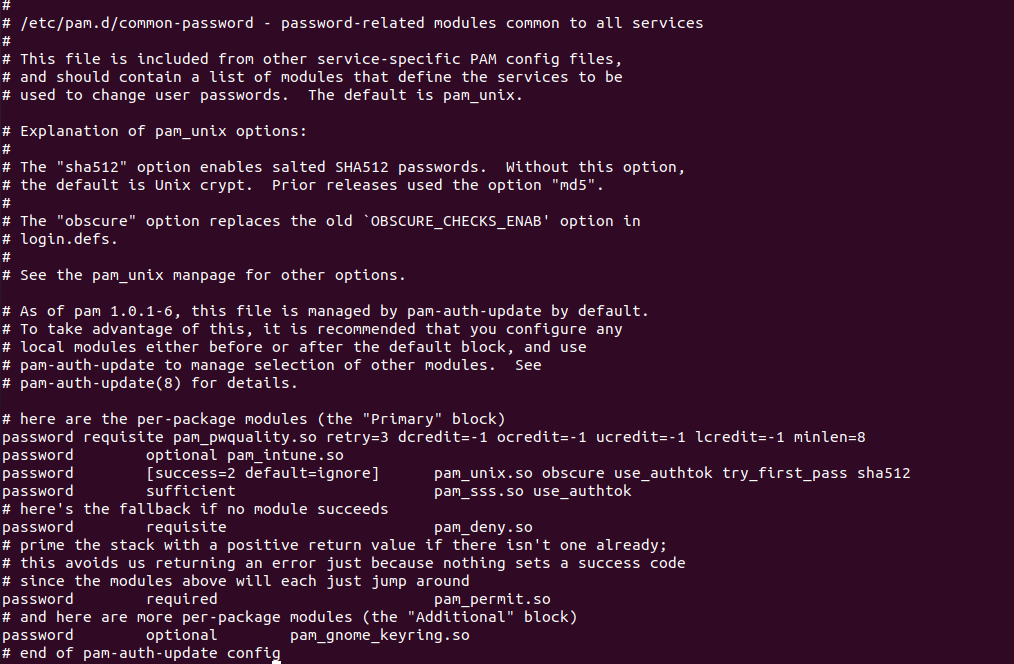
Next, check that pam_pwquality line in /etc/pam.d/common-password. It should be edited like below to match the password compliance policy as set in Intune.
# check that the pam_pwquality line in /etc/pam.d/common-password contains at least the required settings: password requisite pam_pwquality.so retry=3 dcredit=-1 ocredit=-1 ucredit=-1 lcredit=-1 minlen=8
Example common-password file:
If the
/etc/pam.d/common-password file is not edited to match the Intune policy requirement then the machine will report non-compliant.Custom Compliance
With custom compliance, we can use shell scripts to evaluate a Linux device.
Discovery scripts for Linux must be POSIX-compliant shell scripts, such as Bash. However, the scripts can call more complex interpreters from inside the script, like Python. To successfully use other interpreters, they must be correctly installed and configured on the devices in advance of receiving the discovery script.
About POSIX-compliant syntax: Because the custom compliance script interpreter for Linux supports only a POSIX-compliant shell, it’s important to use POSIX-syntax.
To know more, check here - Create a discovery script for custom compliance policy in Microsoft Intune | Microsoft Learn
Below is an example where we have created a shell script to check for a running process or not and if so, it outputs in JSON format. Intune checks the output with the JSON file and marks the device as complaint. If not it will mark as non-complaint.
For Select your discovery script in custom compliance in Intune , select Set reusable settings,
and then specify a script that’s been previously added to the Microsoft
Endpoint Manager admin center. This script must have been uploaded
before you begin to create the policy.To add the script to MEM Admin center follow this article - Create a discovery script for custom compliance policy in Microsoft Intune | Microsoft LearnSample Script to check for running process:
#!/bin/sh
checkProcess() {
Process="processname"
if pgrep -x "$Process" >/dev/null
then
   Process="running"
   printf '{"Process": "%s"}\n' "$Process"
else
   Process="notrunning"
   printf '{"Process": "%s"}\n' "$Process"
fi
checkProcess
For Select your rules file, select the folder icon and then locate and add the JSON file for Linux that you want to use with this policy.
The JSON you enter is validated and any problems are displayed. Sample JSON to match the script output.If not what to display in Intune portal application as non-complaint.
{
	"Rules": [{
		"SettingName": "Process",
		"Operator": "IsEquals",
		"DataType": "String",
		"Operand": "running",
		"MoreInfoUrl": "https://abc.com/",
		"RemediationStrings": [{
			"Language": "en_US",
			"Title": "Process is missing",
			"Description": "Process is not running."
		}]
	}]
}
.png)