Monday, January 12, 2026

Windows 365 - Fix Microsoft Teams error code 2000


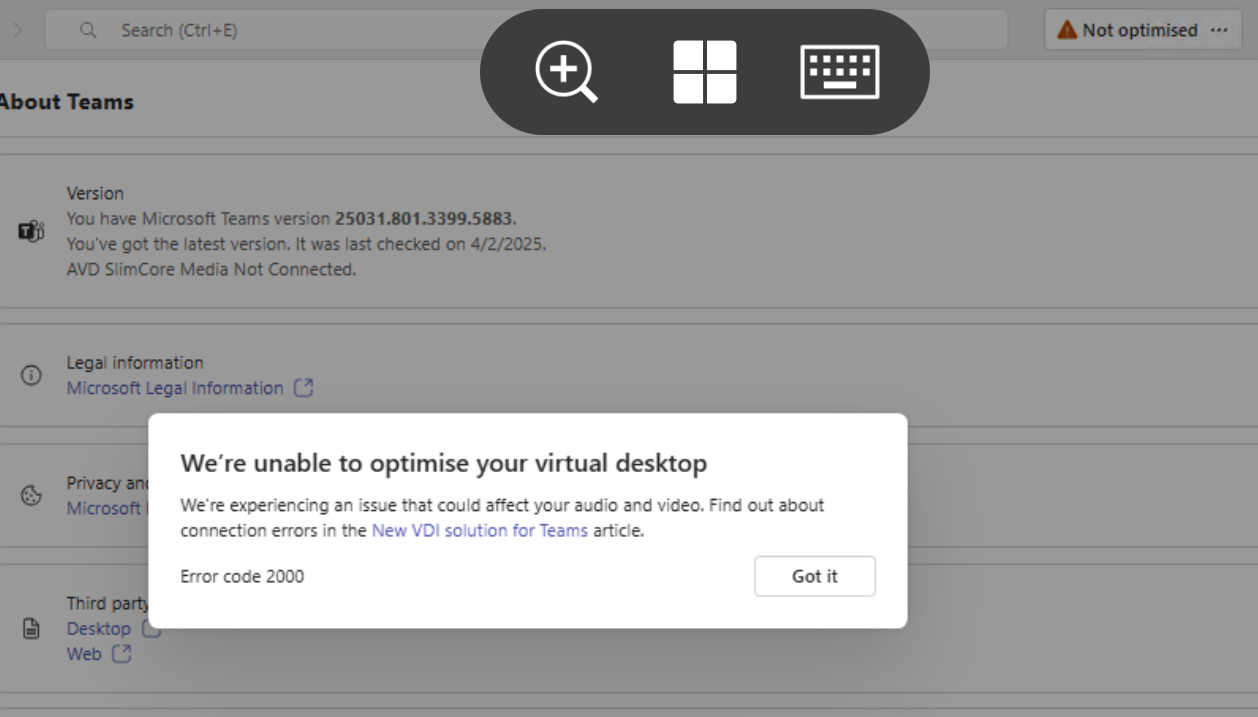
Recently I started to see Microsoft Teams showing Not Optimised banner at the top of the Teams. When clicked on it, it showed to optimize and restart. But when clicked on it, it started to show Error Code 2000. 

Checked in settings and it shows AVD slimcore media Not connected.

The error code 2000 means optimization is not enabled.

Tried to follow the steps outlined in my previous blog https://app2pack.blogspot.com/2025/02/MicrosoftTeams-Performances-Windows.html but it didn’t help. 

Followed the steps mentioned in the official MS article but it also didn’t work. Tried to force quit Teams manually and launch and still it was showing the same error and not optimized banner.

Finally Tried to restart the Windows 365 cloud pc from Windows App and this time after the restart and when clicked on Not optimized banner, it automatically optimized and prompted me to restart the Teams twice. After restarting Teams twice, the banner disappeared. 

Monday, December 1, 2025

W365: Fix Unable to connect Error code 0x5000056

When trying to access your assigned windows cloud pc through windows app in Windows device or any device - in this case ios windows App, you will be promoted with the unable to connect with error code 0x5000056


Even when you try to restart your cloud pc by clicking on three dots, it will show restart attempt failed. When you try to do inspect connection, it will also show as failed.

To fix this issue, follow the below steps. 

Click on your profile and select troubleshooting and select Reset subscription like below.


Click on reset subscriptions. This will delete your assigned windows 365 cloud pc from windows app. After this, click on + icon and add the cloud pc once again by signing into work or school account and entering your credentials.


Friday, November 7, 2025

Windows 365: How to use Bulk device actions command directly on the Cloud PCs that aren't available report

Managing Cloud PCs has become more efficient with the introduction of applying Bulk Device Actions directly on the Cloud PCs that aren't available report. 

Check for the official Windows 365 What's New reference here.

This feature allows administrators to perform actions like restoring, restarting, troubleshooting, and cross-region disaster recovery options directly from the report.

For detailed guidance about the report, visit: Cloud PCs that aren't available report.

Key Considerations:

  • The report reflects conditions from the past 5 to 15 minutes, meaning some Cloud PCs listed may have already recovered or new issues may not yet appear soon. 

Using Bulk Device Actions:

1. Sign in to Microsoft Intune:

    • Navigate to Reports > Cloud PC Overview > Cloud PCs that aren't available.

2. Apply Filters (Optional):

Narrow down the report data to focus on specific Cloud PCs. 

3. Select Cloud PCs:
  • Select the cloud pc's that need to be actioned.
  • You can choose up to 100,000 devices for bulk management.
4. Perform Actions:
  • Navigate to Bulk device actions and select the desired action. 

5. Complete Action Steps:
  • Follow the prompts to finalize the chosen action.
6. Processing Time:
  • Completion time varies based on the action type and number of devices.
7. Report:
These enhancements make managing large-scale Cloud PC environments more effective and less time-consuming.

So why wait,  go and explore now πŸ”œ

Monday, October 6, 2025

Windows 365 Cloud PC on the Go: A Seamless Experience with iPhone 15 and Dell 14” Portable Monitor

 As someone constantly exploring new ways to make work more flexible and mobile, I recently tested accessing my Windows 365 Cloud PC using the Windows App 11.0.2 on an iPhone 15, connected to a Dell 14-inch Portable Monitor (P1424H) via USB-C cable. 

The experience? Absolutely amazing.

Instant External Display Support

The moment I connected my iPhone 15 to the Dell portable monitor using the provided USB-C cable, something incredible happened:

  • The Windows App on my iPhone went black, and the entire Cloud PC session automatically transitioned to the external display.
  • No additional configurations were needed—it just worked!

Performance and Usability

Even though I was running a Cloud PC session remotely, the performance was surprisingly smooth:

  • Microsoft Teams calls worked flawlessly—no noticeable lag or quality drop.
  • Multi-tasking felt natural, with the full Windows experience on a large screen.
  • Touch gestures on the iPhone worked as expected, making navigation easy.

Why This is a Game Changer

This test proved how Windows 365 Cloud PC is truly device-agnostic and travel-friendly. No need to carry a laptop—just a portable monitor and an iPhone:
✅ Work from anywhere—hotel rooms, cafΓ©s, airport lounges.
✅ Minimal setup—plug in and start working instantly.
✅ Full Windows experience on any screen, with external monitor support.

For professionals constantly on the move, Windows 365 + iPhone + Portable Display is a powerful combination. Just connect and use your Cloud PC wherever you are!

Have You Tried This Setup?

If you've used Windows 365 Cloud PC in a similar mobile setup, I'd love to hear about your experience! Would you consider replacing your laptop with a portable monitor and smartphone for remote work? Let’s discuss it! πŸš€