Tuesday, August 5, 2025

Windows 365 - Fix Microsoft Teams error code 2000


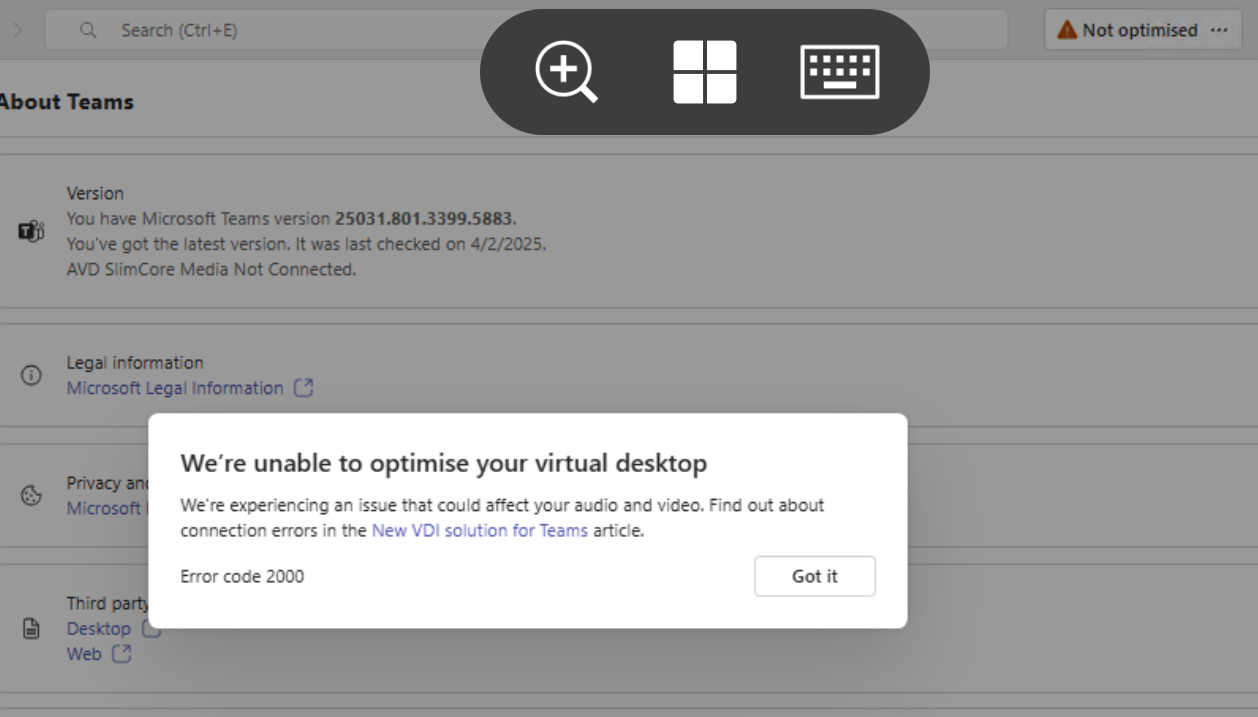
Recently I started to see Microsoft Teams showing Not Optimised banner at the top of the Teams. When clicked on it, it showed to optimize and restart. But when clicked on it, it started to show Error Code 2000. 

Checked in settings and it shows AVD slimcore media Not connected.

The error code 2000 means optimization is not enabled.

Tried to follow the steps outlined in my previous blog https://app2pack.blogspot.com/2025/02/MicrosoftTeams-Performances-Windows.html but it didn’t help. 

Followed the steps mentioned in the official MS article but it also didn’t work. Tried to force quit Teams manually and launch and still it was showing the same error and not optimized banner.

Finally Tried to restart the Windows 365 cloud pc from Windows App and this time after the restart and when clicked on Not optimized banner, it automatically optimized and prompted me to restart the Teams twice. After restarting Teams twice, the banner disappeared. 

Tuesday, July 1, 2025

Windows 365: How to use Bulk device actions command directly on the Cloud PCs that aren't available report

 Managing Cloud PCs has become more efficient with the introduction of applying Bulk Device Actions directly on the Cloud PCs that aren't available report. 

Check for the official Windows 365 What's New reference here.

This feature allows administrators to perform actions like restoring, restarting, troubleshooting, and cross-region disaster recovery options directly from the report.

For detailed guidance about the report, visit: Cloud PCs that aren't available report.

Key Considerations:

  • The report reflects conditions from the past 5 to 15 minutes, meaning some Cloud PCs listed may have already recovered or new issues may not yet appear soon. 

Using Bulk Device Actions:

1. Sign in to Microsoft Intune:

    • Navigate to Reports > Cloud PC Overview > Cloud PCs that aren't available.

2. Apply Filters (Optional):

Narrow down the report data to focus on specific Cloud PCs. 

3. Select Cloud PCs:
  • Select the cloud pc's that need to be actioned.
  • You can choose up to 100,000 devices for bulk management.
4. Perform Actions:
  • Navigate to Bulk device actions and select the desired action. 

5. Complete Action Steps:
  • Follow the prompts to finalize the chosen action.
6. Processing Time:
  • Completion time varies based on the action type and number of devices.
7. Report:
These enhancements make managing large-scale Cloud PC environments more effective and less time-consuming.

So why wait,  go and explore now πŸ”œ

Wednesday, June 11, 2025

W365: Windows App MSIX auto-update feature even if MS Store is blocked

 With the latest release of the Windows app 2.0.360.0, if a previous version 2.0.327.0 or higher was downloaded offline as an .msix format and installed, it now supports auto update even if the Microsoft Store app is blocked. 

Earlier this wasn't the case, auto update was not supported and admin have to download the msix new version again and perform the update manually or through Intune.  This was time consuming and we raised a feedback to support auto-update for the manually installed windows app as .msix format even if Microsoft store app was blocked in the enterprise.

Reference - what's new in Windows App

This feedback was properly listned by the Microsoft Product Team and they immediately added this feature to their roadmap and started working on it.  We had a wonderful opportunity to interact with the Microsoft product team through the Microsoft management customer connection program MCCP.  There were couple of focus groups, 1:1, feedback session and infact private previews offered to the members.  And I was also a part in all of these and shared my suggestions and private preview feedbacks. Only after all the feedbacks were positive and all worked well,  this amazing feature got released recently. A big thanks to all the product team members, community participation and Product managers that made this feature available for general public.

If you also like to interact with the product group directly like us then you can join the program by following the registration  link: https://www.aka.ms/JoinCCP (remember that a NDA with Microsoft is a need!)

You can also test this by manually downloading the .msix from here

You can download Windows App outside of the Microsoft Store from the following links:

After installing it,  make sure the Microsoft store app is blocked.  When a new version is released, the existing manually installed windows app will auto update as same like the rollout schedule like it happens in Microsoft store allowed.

Note:

The Windows app checks for updates once every 8 hours in the background and updates automatically only when the app is closed. If it discovers an update while open, the user will see the update banner and update available button in the settings panel.

Sunday, June 1, 2025

W365: Simplifying Bulk Device Management

Following previous article as how to perform bulk troubleshooting for cloud pc's,  below is an article about how to get report or status of those bulk actions. 

Introducing the Cloud PC Action Report: Simplifying Bulk Device Management

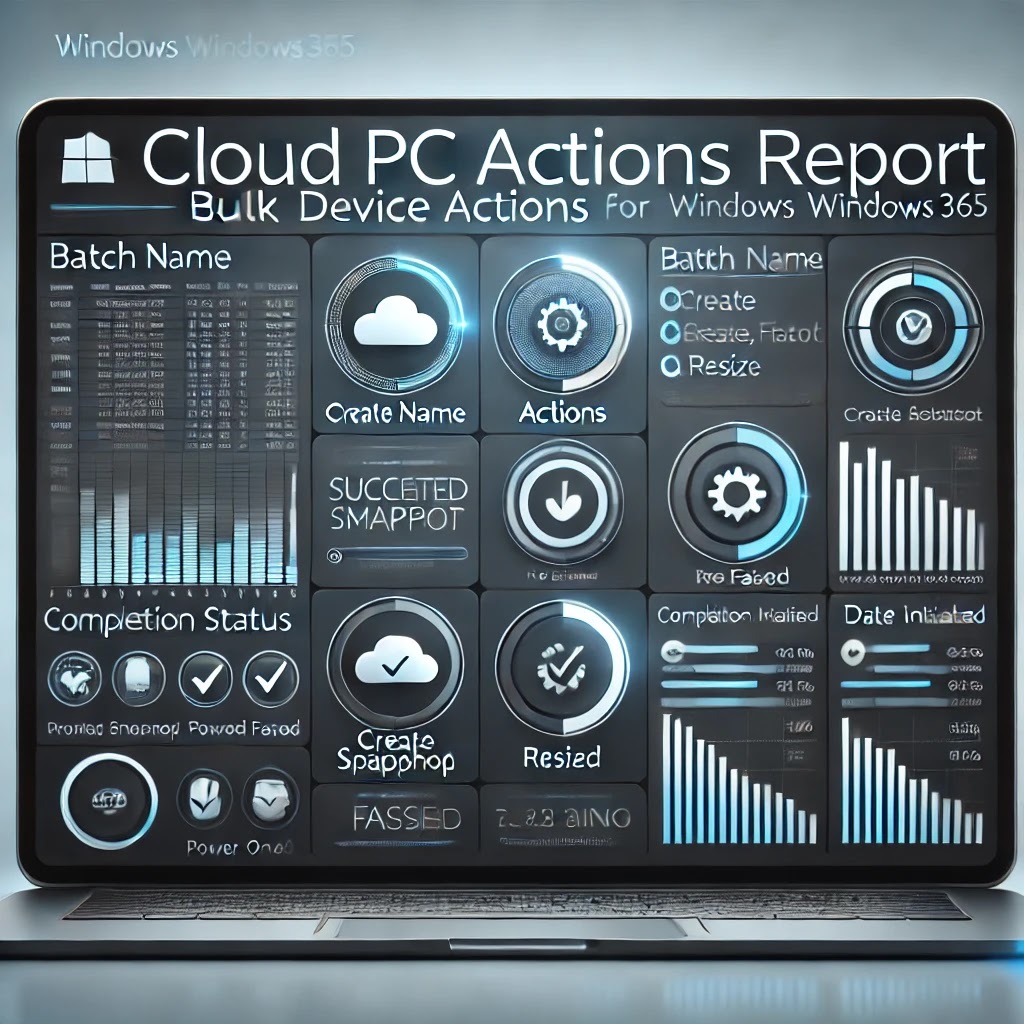
Managing multiple Cloud PCs can be a complex task, but the Cloud PC Actions Report in Microsoft Intune makes it much easier. This feature allows administrators to monitor the status and progress of bulk actions taken on Cloud PCs across multiple devices, helping ensure efficient management.  


Key Highlights:  

- Accessing the Report:  

  Navigate to Microsoft Intune admin center, go to Devices > Monitor > Cloud PC actions (preview). The report tracks action statuses for up to 90 days.  

- Bulk Actions Made Simple:  

  When you perform actions on multiple Cloud PCs at once, they’re grouped into batches for better tracking.  This can be selected by clicking on bulk batches tab option.

- What’s in the Report?  

  The report provides the following information:  

  - Batch Name: A unique name automatically assigned to each group of devices for easier identification.  

  - Action: Lists actions taken, including:  

    - Snapshot creation  

    - Region movement  

    - Review placement  

    - Power On/Off (Frontline Cloud PCs only)  

    - Reprovisioning  

    - Resizing  

    - Restarting  

    - Restoring  

    - Troubleshooting  

  - Status: Tracks the progress of each action:  

    - Succeeded: Completed successfully.  

    - Failed: Didn't complete; retry options may be available.  

    - Pending: Action is in progress; avoid making changes like removing licenses.  

    - Review Required: Additional admin input is needed (e.g., assigning a license for resizing).  

  - Date Initiated: When the action started.  

With this report, managing bulk actions is no longer a guessing game. It provides visibility into the success, pending tasks, or potential issues with your Cloud PCs, saving time and improving productivity.  

Start using the Cloud PC Action Report today to get status of your bulk cloud pc device management easily!!!