Showing posts with label App-V 5.0 SP3. Show all posts

Friday, April 15, 2016

Unpublishing shows App in use error even when there is no application process running in task manager - Reason

Question: Even though when application is closed and no process or child process is running behind, unpublishing the package still shows application is in use and creates a Pending Task entry in the registry key. What is the reason? why it fails?

Answer: This issue is happening because of the Dynamic Virtualization (Just In Time virtualization) provided by the App-V 5.0 SP2 and higher. There are some applications like office, visio etc which has shell integration's that tightly integrates with the Explorer and Internet Explorer by default and are processed to use the virtual components. This is to enable support for enhanced shell extensions like context menu, drag and drop handler, drop target handler,data object handler,property sheet handler,infotip handler,column handler and preview handler.

Closing the running application, Internet explorer and trying to unpublish still shows "App in use" error.Even if we try to run the Stop-AppvClientPackage command in an elevated powershell, it will kill the running application and the Explorer to which the shell is hooked. The explorer which got closed earlier in turn will automatically restart quickly, and so making the package to be in use.You can check this using Process Explorer and searching for AppvEntsubSystems32.dll or AppvEntsubSystems64.dll. This will reveal the process that is using them.


Also you can check in CMD by using the below commands.


Listdlls.exe -v -d AppvEntsubSystems32.dll (or)
Listdlls.exe -v -d  AppvEntsubSystems64.dll 

Listdlls.exe is available with sysinternals tool. You can download it from here.

https://technet.microsoft.com/en-us/sysinternals/bb842062.aspx


You can see that explorer.exe and Iexplore.exe are present by default in the ProcessUsingVirtualcomponents key in the HKEY_LOCAL_MACHINE\SOFTWARE\Microsoft\AppV\Client\Virtualization


Tuesday, April 5, 2016

Sequence WinZip 19 - App-V 5.1

Download the source and extract the windows installer (.msi) file from %temp% location.

Start the sequencing step using App-V 5.1 Sequencer.

1. Select create a new virtual package.


2. Select create package.


3. Select standard package.


4. Select custom installation.


5. Type the name of the virtual package as WinZip 19.0.


Click Next and run the installation of the msi file in the CMD as shown below.


If you want to customize further using the PUBLIC Properties during installation with the msi, have a look in the below links.

http://kb.winzip.com/kb/entry/11
http://kb.winzip.com/kb/entry/229/

Remove the desktop shortcut.

6. Click I am finished Installing once installation is completed.


7. In the configure software phase, launch the main shortcut and enter the registration details if you already have. Once the application opens, close it. Do this for at least 2 - 3 times. Launch again and keep the shortcut open and run the following command in CMD Prompt.


 reg add "HKCU\Software\Nico Mak Computing\WinZip\WinZip" /v AssocMsgExe /t REG_SZ /d 0 /f

Close WinZip app and open it again for the last time.

NOTE:

This step is done in order to suppress the below popup window from occurring in the client side after publishing and launching the shortcut.


8. In the Installation Report, You can notice that App-V has detected DCOM object. As all know DCOM is not supported by App-V 5.1 too. Just click on close and skip to next.

NOTE - I have done basic functionality tests alone and it seems to work fine without any issues. If anyone come across any issues because of this kindly report me back.


9. In the streaming phase, execute the shortcut if you want to capture feature blocks. If not click next to fault stream.


10. At the "Create Package" stage select "Continue to modify package without saving the package editor"


11. Check in the "Virtual Registry" tab whether the registry is captured properly.

REG_SZ AssocMsgExe with value 0 is under USER\[{AppVCurrentUserSID}]\Software\Nico Mak Computing\WinZip\WinZip.


If it is present, click File and save the package.

NOTE:

Adding AssocMsgExe to the Virtual Registry inside the Package Editor after the monitoring phase or configuring phase will not suppress the prompt. It needs to be done only during the monitoring phase or configuring phase.

Saturday, March 26, 2016

Not able to see App-V 5.1 client GUI - Reason & Solution

Recently I have seen many queries in Technet and other groups about whether there is an App-V 5.1 client GUI available or they couldn't see the client GUI after installing App-V 5.1 client.
So let me clear this confusion first.

Microsoft doesn't provide a client GUI for App-V 5.1.Though it has stated in the below links that there is an UI available for App-V 5.1, it doesn't provide any link to download nor has a separate shortcut which I confirmed by opening the MSI and had a look for any client UI shortcut.

https://technet.microsoft.com/en-us/library/mt346576%28v=vs.85%29.aspx

(Have posted in Technet about this false informations. check HERE.Hope MS will look into it.) 

We already know that it stopped providing GUI from App-V 5.0 SP2. Beginning App-V 5.0 SP2, Microsoft started providing a separate client GUI which can be downloaded from the below link.

Microsoft provides the client GUI as both windows installer (MSI) and App-V format. You can choose which one will suit your requirement. 


Don't get confused as both the files are in .msi formats. The first one is windows installer which installs the client UI (appv_client_ui_setup.msi) and the second one (appv_clientUI_package.msi) just extracts the .appv files.


Even for App-V 5.0 SP3 there was no separate client GUI provided by Microsoft.They asked to use the existing GUI that was provided for App-V 5.0 SP2 and it worked well for SP3 too.


Now the real question which many people asked me is that whether we can use the existing App-V 5.0 SP2 client GUI for App-V 5.1 as there is no UI? Will it work with App-V 5.1?

Yes, would be my answer. I recently tested this in my test lab and found it to be successful.I installed App-V client GUI from the above link in the machine where App-V 5.1 HF2 client is present.
Published some test apps and checked in the client GUI. It was visible. I was able to perform all the functionalities like repair,view applications and connection groups,update,download etc..


If you don't wish to use the GUI, you can use the Powershell commands which comes in handy. 


Also check the AppV_Manage tool provided by Tim Mangan. It works great for App-V 5.1.
(P.S I use this as it is great and I would recommend using it.)

Tuesday, March 15, 2016

Sequence Excel addin for Adobe Analytics Report Builder 5.2 - AppV 5.1

There are some possible ways to make sequenced add-on work with the locally installed office product. I have listed them below. You can use whichever method suits your need.


1.Create shortcut to local excel:

Install the Microsoft office product locally in the machine prior to sequencing. Open the sequencer and select Add-on or plugin option.


select I have installed the primary package and click next.


 Enter the virtual package name


Install the Adobe Analytics Add-in .


Create a shortcut for excel during monitoring phase and launch it to verify the Adobe Analytics addin.


End the sequence and save the package. In the client side make sure that Office product is installed locally prior to publishing of Adobe Analytics virtual package.

2. Using /appvve:

Alternatively, if you do not want to create a separate shortcut while sequencing you can make use of /appvve:

Eg: Excel.exe /appvve:ProductID_versionID


Alternatively, if it shows error try like below.

cmd.exe /c START "" "Excel.exe" /appvve:ProductID_versionID (or)

START "" cmd.exe /c Excel.exe /appvve:ProductID_versionID

NOTE: This  needs to be done by editing the target field in the native shortcut.


3. Using Runvirtual:

You can create a registry entry for Excel to load inside the Adobe Analytics virtual environment using Runvirtual. From App-V 5.0 SP3 runvirtual supports both machine and user. i.e you can create entry in HKCU for user also.


UPDATE:
In case if you have multiple excel addon's then follow this link from Steve Thomas.

http://blogs.technet.com/b/gladiatormsft/archive/2013/09/04/app-v-on-virtualizing-multiple-excel-add-ins.aspx

NOTE: The above steps are for locally installed Office product. If office product is virtualized, then you would need to create a connection group.

Also note plug-in package should be published globally to match the global settings of the published Office App-V package. Also verify that the Deployment Configuration File of the plug-in package has the same settings that the Office App-V package has.You can search the Deployment Configuration File for “COM Mode” and ensure that your plug-ins package has that value set as “Integrated” and that both "InProcessEnabled" and "OutOfProcessEnabled" match the settings of the Office App-V package you published. Open the Deployment Configuration File and set the value for Objects Enabled to false.

For more Information, kindly refer the below link.

https://technet.microsoft.com/en-us/library/mt590515.aspx#BKMK_custmz_manage_Office_pkgs

Wednesday, March 9, 2016

App-V 5.1 and App-V 5.0 SP3 generated MSI doesn't install without Administrator privileges Error code 0300000102- Solution

Question: When trying to run the App-V 5.1 or App-V 5.0 SP3 created MSI in the client machine, it fails with the error code 0300000102. How to resolve this.


Corresponding Event log:


Solution: Try running the CMD as Administrator and from here run the MSI file.This will resolve the issue. The MSI requires Admin privileges to run in the client machine.


Ok, now this works but what might be the reason? This comes into everyone's mind. Let me explain further.


Opened the App-V 5.1 sequenced MSI package and first checked in the Launch Condition table using ORCA. I see that there is a Privileged condition. I removed it by creating a Transforms file for the MSI. Tried Installing again and even this time it failed.


Analyzed further by opening the MSI template file for App-V 5.0 SP2. The msi will be located in C:\Program Files\Microsoft Application Virtualization\Sequencer\en-US


I see that the Custom Action PublishPackage32 and PublishPackage64 has Type to run in deferred execution in system context (3073)


Now opened the MSI template file for App-V 5.1 and see that those Custom Action PublishPackage32 and PublishPackage64 has Type to run in deferred execution (1025)


Ok now I have found a reason. It's time to test it. I created a Transforms file for the App-V 5.1 generated MSI package (Testpackage.msi) and changed the type for PublishPackage32 and PublishPackage64 to run in deferred execution in system context.


Tried installing the MSI with the created Transforms file (MST). Viola!! it works fine without the need for CMD as admin.


The same applies for RemovePackage32 and RemovePackage64 custom action also. This method works great for App-V 5.0 SP3 generated MSI also.


NOTE:


I heard from Dan Gough that he has created a Transforms file (MST) which would automate this case and resolves the need for Run as Admin. In addition to that he has also added support to include the deployment config.xml file too when installing. Hopefully he will be releasing it officially by this month. Once he releases it, I will be updating this blog with his Link to download the MST file.
 

Saturday, March 5, 2016

Issue with sequenced SAP GUI 7.40 "Unable to load GSS-API DLL named sncgss32.dll" - APPV 5.0

Hi folks, hope everything is going fine. First I would like to  thank all for your tremendous support. It's a sunny weekend here and I am sitting in home and blogging .


Previously, one of my distance friend who is an App-V engineer asked me to help him with an issue he was facing when launching virtualized SAP GUI 7.40. When launching the SAP logon shortcut, he was facing this issue.


When clicking yes, it prompts the below information.


First and more most tool that helps us is the great handy PROCMON tool. When analyzing the issue it showed that the shortcut is looking for sncgss32.dll and it couldn't find it.We manually searched in the App-V location and yes we couldn't find it anywhere.


We installed the source manually in a fresh machine and searched for the sncgss32.dll and we couldn't find it anywhere.


Then comes our friend Google. we searched what might be the reason for failure. We found that it needed an  environment variable SNC_LIB of the client host system set to <Install_Path_SAP_GUI>\FrontEnd\SapGui\Encryption\secgss.dll"

http://help.sap.com/saphelp_nw70ehp1/helpdata/en/b4/a040e5f0fe4ceeb7a4d6144f4d0f28/content.htm?frameset=/en/76/ea37bd31794c1da6f1ae9ba5a9df5d/frameset.htm


I checked with him whether the environment variable was set during monitoring phase. Indeed his reply was that the environment variable was set during sequencing.


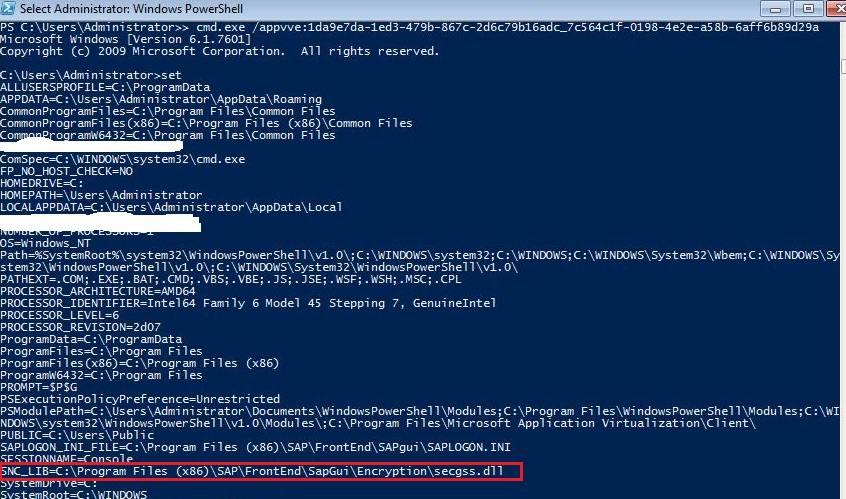
We then opened up the virtual bubble of the sequenced SAP GUI package using the below command.


cmd.exe /appvve:ProductID_VersionID


We can see that the SNC_LIB environment variable inside the virtual environment using the SET command. Then why the application is failing to use it?


We manually created the environment variable locally in the machine. Now when launching the shortcut it works fine as expected. But we didn't want this to be the solution. Lets try some other method.


I often ask people to launch the shortcut inside the virtual bubble once whenever they face any error to eradicate issues in a simple way. The same we did here too.


We tried to launch the shortcut exe inside the virtual bubble (which was opened earlier using cmd.exe /appvve:ProductID_VersionID). Viola!!! the shortcut works as expected.

UPDATE:

You can also modify the main shortcut and add CMD to run as a middleman.

Example:

cmd.exe /c start "" "C:\Program Files\myapp.exe"

Thanks Dan Gough for pointing this out.

Friday, February 19, 2016

Monday, November 2, 2015

Application in use & Unpublish - App-V 5.1

Question : What happens when we unpublish an application that is in use in App-V 5.1? We see that the unpublish is getting failed, but when we launch the shortcut, it doesn't work.What is the issue?

Answer : Lets take an example by publishing the Mozilla Firefox App-V 5.0 package in a standalone machine using Powershell. Launched the shortcut and everything works fine. Now tried to unpublish by keeping mozilla firefox open(in-use).We are seeing the below "Currently in use" error.


We can see that the unpublishing has failed. Nothing has changed to the mozilla application. Shortcuts are seen in the Start menu etc. But when we try to launch the shortcut, we see this error.


When analyzed more by checking in event viewer, we see the below entry.


The package has been scheduled to be unpublished during restart/reboot. How this works?
The App-V client creates an entry in pendingtasks registry for the particular application with its ProductGUID_VersionGUID.


REASON: 

With App-V 5.0 SP2 or higher, App-V packages that are being used cannot be unpublished. It will be made to unpublish automatically during restart/reboot if globally published and unpublish during logoff/login if published to the user. This is handled by making a PendingTasks entry to the following registries.

Global Publish - HKEY_LOCAL_MACHINE\Software\Microsoft\AppV\Client\PendingTasks 

User Publish - HKCU\Software\Microsoft\AppV\Client\PendingTasks

Prior to App-V 5.0 SP2, Application in use cannot be unpublished. It can be done only by closing the application and then unpublishing it again.

Wednesday, October 28, 2015

Sequencing VLC Media Player using App-V 5.1

1)  Launch the Microsoft Application Virtualization Sequencer from Start-> All Programs


2)  Select the create package (default) option.


3) Select the "Standard application" type in the type of application to be sequenced.


4)  Select "Perform a custom installation" in the select installer screen and click next.


5) Provide the virtual application name as VLC Media Player and click next.


6) Install the VLC Media player application now.


Uncheck Desktop shortcut option.


Uncheck Run Vlc Media Player option and click finish.

7) Once Installation is completed, Select "I am finished Installing" and click next.


8) In the configure Phase, launch the required shortcuts and perform custom changes if needed and remove unwanted shortcuts.


Here we have removed all unwanted shortcuts other than the main VLC Media Player shortcut. Launched it and unchecked the check for updates and allow network access.Launched it again to make sure everything is captured in feature block 1.


Click Next.


11) Select stop now to create virtual package and click next.


12) Save the package.

Standalone Powershell Testing in the client side:

Execution Policy should be bypassed first.Then enter the below command in PS to publish the VLC Media Player App-V package.

Add-AppvClientPackage "path to .appv file" | Publish-AppvClientPackage -Global | Mount-AppvClientPackage

Shortcut Location:


Shortcut launch: