Showing posts with label Microsoft. Show all posts

Saturday, September 21, 2024

πŸ… Award - Microsoft Windows Cloud Champion

 πŸ₯I am very much delighted to share that I have been awarded as #Microsoft Windows Cloud Champion on 20th September 2024πŸ…

“The Microsoft Windows Cloud Champion badge is awarded to members who have demonstrated their skills and provided in-depth technical knowledge and feedback on Windows Cloud product features.”

#Community #MCCP #Windows365 #W365

View my award πŸ₯‡ MCCP Windows Cloud Champion on Credly.


Thursday, March 29, 2018

Decrypting how Microsoft Teams new MSI works

Microsoft has released a windows Installer MSI for Microsoft Teams for deployment through SCCM.You can download it here


As per Microsoft Statement:


"The Teams MSI will place an installer in Program Files. Whenever a user signs into a new Windows User Profile, the installer will be launched and a copy of Teams application will be installed in that user's appdata folder. If a user already has the Teams app installed in the appdata folder, the MSI installer will skip the process for that user."


NOTE: Don't change the install location as it will break the process.


In this blog, I will explain how this happens by opening MSI using Installshield.


1. To Install Microsoft Teams, it first requires .net 4.5 or later to be installed in the machine. This check happens using Launch condition which also does a system search for .net registry to be present in the machine.


2. The MSI has only one file which is Teams.exe that gets installed to [ProgramFilesFolder]Teams Installer location.


3. It also has only one registry file which gets placed in Run key.So whenever a user logs in, the run key will trigger the command present in it. So in this case it triggers the Teams.exe -checkinstall


So after published through SCCM system context, you can find the Teams.exe installed in the following location.


Also a run key is created in the machine registry HKLM which will trigger the Teams.exe to check for files installed in %localappdata% if not present install the files and launch automatically.


User if logged in, needs to logoff/login again. If a new user logs in then the run key will trigger the install process in the background  and place the files in the below location and then launch automatically.


To perform a clean removal of files through SCCM, use the Powershell script from the below link.


https://docs.microsoft.com/en-us/microsoftteams/scripts/powershell-script-teams-deployment-clean-up

Sunday, April 9, 2017

Windows 10 v1703 - Auto App-V unpublished package clean up

Earlier when we unpublish App-V packages it used to stay in the App-V cache location  and used to occupy unwanted storage space on the client machines. If we want to remove them to free up space we need to  do manual removal or using powershell command Remove-AppVClientpackage

With the release of the new windows 10 creators update v1703 App-V client provides options to automatically cleanup the unpublished packages.It requires restart.

This option can be enabled either by PowerShell or group policy or Registry.

PowerShell:


Open PowerShell as administrator and run the below code.

Set-AppvClientConfiguration -AutoCleanupEnabled 1


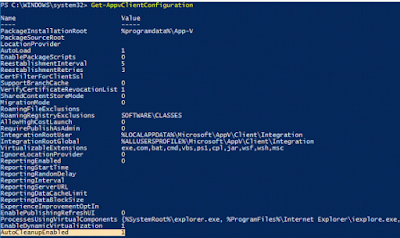
Run the below code to get the status.

Get-AppvClientConfiguration


Group Policy:

Go to Administrative Templates-System-App-V-PackageManagement-Enable automatic cleanup of unused appv packages and select enabled.

Registry:

HKLM\SOFTWARE\Microsoft\AppV\Client\PackageManagement
AutoCleanupEnabled 
REG_DWORD 1

Finally Microsoft have provided the much awaited feature to its users.

Sunday, April 3, 2016

Finally I am a Microsoft MVP (Most Valued Professional)


April 2016 started very well with a good news for me. Earlier today I was checking my mails and I was totally taken aback. I received a mail from Microsoft stating that I have been awarded the most prestigious MVP award for outstanding contributions to the Microsoft community and other forums in terms of App-V. I was super excited to see a recognition from Mr. Biplab Paul, PMP Audience Evangelism Manager – India Communities Microsoft.This was like a dream come true for me.


Getting the MVP award was one of my long term goal and finally I have achieved it. This is my very first MVP award.I am so honored to be a part of the Microsoft Community and now also the MVP program! I would like to thank all other App-V gurus, App-V MVP's, Microsoft MVP program, India MVP program and my beloved family & friends.I would like to dedicate this to Rory Monaghan who inspired me to achieve my goal.And finally a big thanks to all of you who supported me and visited my blog, without you this wasn’t even possible!


A Big Thanks to all once again.

/Vigneshwaran

Thursday, July 30, 2015

Download Microsoft E-books for free

Download Microsoft E-book for free. Including Windows 10, Windows 8.1, Windows 8, Windows 7, Office 2013, Office 365, SharePoint 2013, Dynamics CRM, PowerShell, Exchange Server, Lync 2013, System Center, Azure, Cloud, SQL Server etc.


So why wait, Go and grab your own copy.


Download Links:


Link1
Link2
Link3


Free ebook: Introducing Windows 10 for IT Professionals, Preview Edition

The Windows 10 Technical Preview offers anyone an opportunity to not just try out the next version of Windows but to provide feedback about the new operating system, in real time, to the team that is building it.


Author Name - Ed Bott.


Download the book from here