Showing posts with label app-v. Show all posts

Wednesday, October 18, 2023

Solution: TortoiseSVN Background contextmenu not visible after publishing

After publishing the App-V sequenced TortoiseSVN, all the context menu shortcuts are visible and it works fine. Only the background context menu option is not visible. In this blog, I will demonstrate and provide a solution for it.


First download the TortoiseSVN software from the below link.
https://tortoisesvn.net/downloads.html


Download the Latest windows ADK so that we can use the latest App-V Sequencer from the below link.
https://docs.microsoft.com/en-us/windows-hardware/get-started/adk-install


Sequence the TortoiseSVN application using default steps.


Even if you use PVAD when sequencing, we can see the same issue that the background context menu is not visible after publishing.
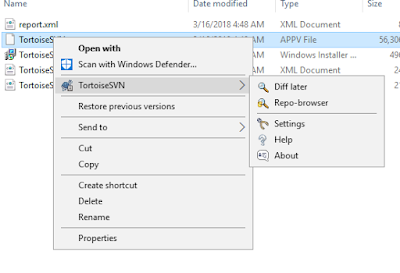
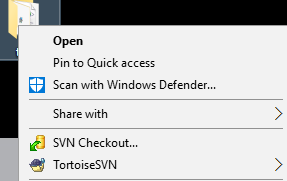
After Publishing the sequenced package, we can see that when we right click file\folder\drive the context menu option is visible as App-V will install those respective registry entries in the local machine and they will be used by the explorer due to dynamic virtualization concept.


FILE:


FOLDER:


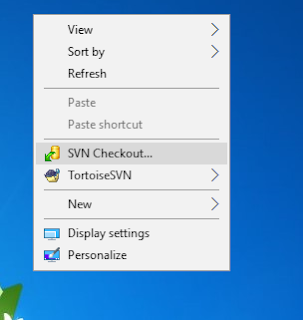
But when we right click on empty explorer window or inside any folder empty place, the below options are not visible as seen in the native installed package.


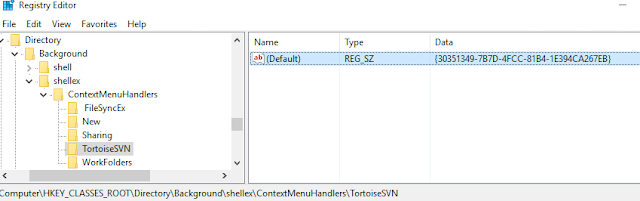
We can see that in the sequencer machine, the following registry responsible for the background context menu is registered in the local machine.


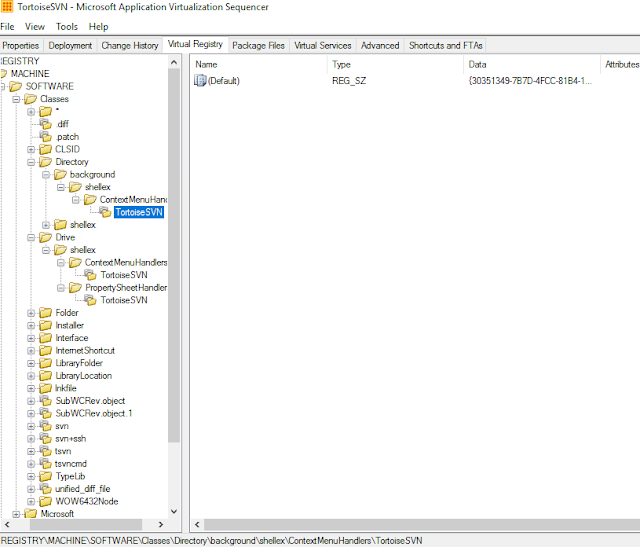
Even in the package editor we can see that those registry keys are captured.


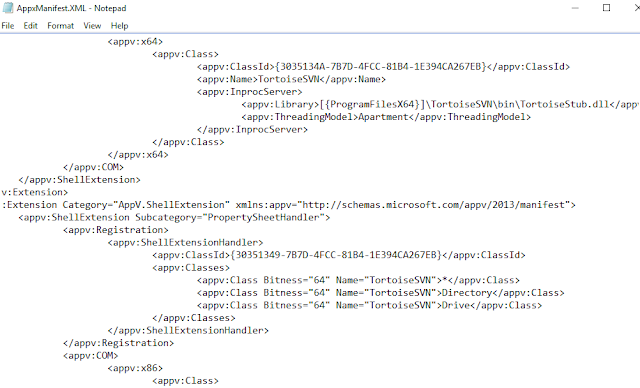
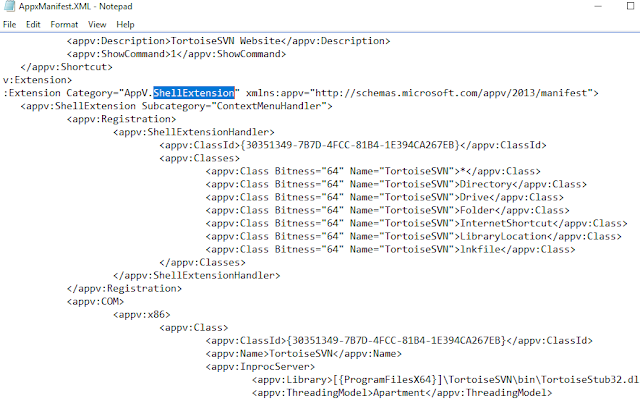
Even in the AppxManifest file we can see those shell entries.


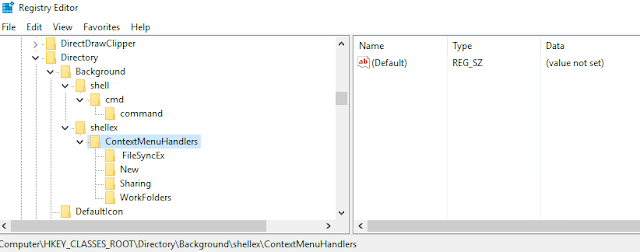
But after publishing and seeing the local HKCR registry, the particular key alone is missing. All other context menu registries are visible.


Windows Registry Editor Version 5.00

[HKEY_CLASSES_ROOT\Directory\Background\shellex\ContextMenuHandlers\TortoiseSVN]
@="{30351349-7B7D-4FCC-81B4-1E394CA267EB}"


To Fix the issue, copy the above registry key and install in native machine.To Add it with the sequenced package, first export the AppxManifest.xml file and edit it using AVME from the below link.


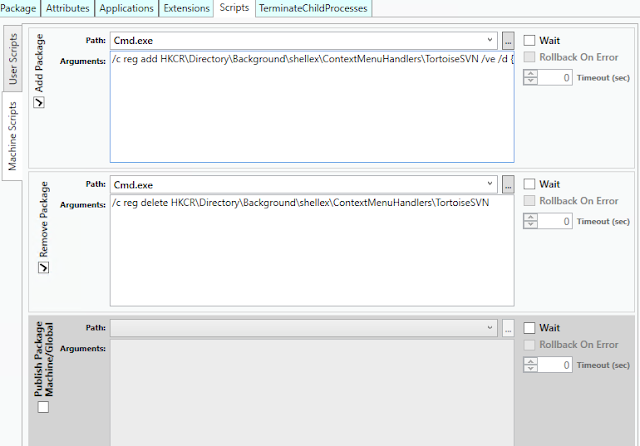
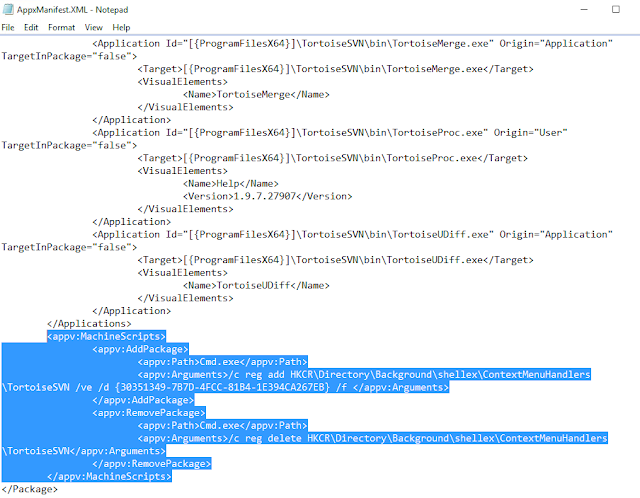
Edit the XML file and add like below in AddPackage and Remove Package tabs.


Once done save the AppxManifest.xml file and import it back to the package using sequencer.


Save the package and publish it to the client machine. Now you can see the context menu when you click on empty explorer window or empty space inside directory.
You can also add the registry using scripts in deploymentconfig/userconfig file too.

As pointed by Roy Essers in a TechNet post, this indeed seems to be App-V sequencer bug and MS needs to fix this soon.

Tuesday, October 30, 2018

Adobe Acrobat DC App-V & Windows 10 Issue - Resolved

Later have been seeing issues when removing earlier versions of Adobe Acrobat DC and installing newer version in windows 10 1703/1709 which has been explained very well in the below blog by Ryan Ververs-Bijkerk


https://www.logitblog.com/app-v-application-was-unable-to-start-correctly-on-windows-10/


The solution was to restart the machine and try again earlier. Now this is fixed with the release of new updates for windows 10.


1703 fixed in 2018.10 - KB4462939
1709 fixed in 2018.10 - KB4462932
1803 fixed in 2018.10 - KB4462933


Thanks to Tim Mangan for sharing this update information.

Wednesday, March 14, 2018

Adobe Illustrator error 16 - Fix

When launching sequenced Adobe illustrator shortcut we see the below issue in the App-V client machine.


Reason: This is due to UAC and the application requires to be run as administrator.

Solution: To test manually Click Start > All Programs. Right click on the Adobe Illustrator shortcut  and click Run As Administrator. The shortcut will launch without any error.

So how to resolve this in the App-V 5.x package? We need to suppress the UAC prompt when run as administrator using RunAsInvoker or other shims.

Check my another blog for more information to solve this issue here

Tuesday, March 6, 2018

HotFix Released: App-V Applications worked in win 10 1607 fails in win 10 1703

Many packages that completely worked in inbox App-V in windows 10 1607 failed after upgrading to windows 10 1703. The reason for failure is due to Microsoft changed the way to load registries in containers CREG instead of usual virtual registry VREG.

There was a temporary fix which was available and Roy Essers posted it in twitter a long back.
It was adding the below registry entry manually in the 1703/1709 machines.


[HKEY_LOCAL_MACHINE\SOFTWARE\Microsoft\AppV\Client\Compatibility]
"RegistryCompatibilityMode"=dword:00000001


This issue is fixed in windows 10 1703 with the new hotfix released.


https://support.microsoft.com/en-us/help/4077528


We can clearly see that they have made use of the temporary fix to change the registry virtualization to use the VREG instead of the modern CREG that was mentioned earlier to permanently fix this issue.


Apart from the registry fix, this update also fixes many other App-V issues which can bee seen below.


This update will be downloaded and installed automatically from Windows Update.

Wednesday, February 14, 2018

App-V: Virtual Packages works in win 10 1607 but fails in windows 10 1703/1709

Many packages that completely worked in inbox App-V in windows 10 1607 failed after upgrading to windows 10 1703 and 1709 versions. The reason for failure is due to Microsoft changed the way to load registries in containers CREG instead of usual virtual registry VREG. To know about this change do have a look at the below articles from Tim Mangan.

http://www.tmurgent.com/TmBlog/?p=2692
http://www.tmurgent.com/TmBlog/?p=2733

There was a temporary fix which was available and Roy Essers posted it in twitter a long back.
It was adding the below registry entry manually in the 1703/1709 machines.


[HKEY_LOCAL_MACHINE\SOFTWARE\Microsoft\AppV\Client\Compatibility]
"RegistryCompatibilityMode"=dword:00000001


Microsoft has released an update earlier today which is supposed to fix this registry mapping issue.
https://support.microsoft.com/en-us/help/4074588


We can clearly see that they have made use of the temporary fix to change the registry virtualization to use the VREG instead of the modern CREG that was mentioned earlier to permanently fix this issue.


Apart from the registry fix, this update also fixes many other App-V issues which can bee seen below.


This update will be downloaded and installed automatically from Windows Update. If you would like to use the standalone package for this update, download it from the below link.


http://www.catalog.update.microsoft.com/Search.aspx?q=KB4074588

NOTE: This fix is supposed to be only for windows 10 1709. The article haven't mentioned anything about windows 10 1703. Will do a check in windows 10 1703/1709 and update how the fix has really helped to solve the issue.


Update: This issue is also fixed in windows 10 1703 with the new hotfix released.


https://support.microsoft.com/en-us/help/4077528


Sunday, April 9, 2017

Windows 10 v1703 - Auto App-V unpublished package clean up

Earlier when we unpublish App-V packages it used to stay in the App-V cache location  and used to occupy unwanted storage space on the client machines. If we want to remove them to free up space we need to  do manual removal or using powershell command Remove-AppVClientpackage

With the release of the new windows 10 creators update v1703 App-V client provides options to automatically cleanup the unpublished packages.It requires restart.

This option can be enabled either by PowerShell or group policy or Registry.

PowerShell:


Open PowerShell as administrator and run the below code.

Set-AppvClientConfiguration -AutoCleanupEnabled 1


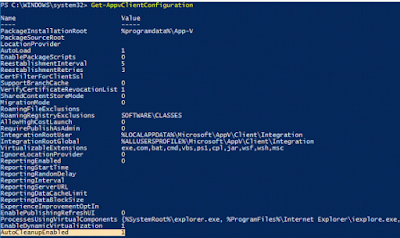
Run the below code to get the status.

Get-AppvClientConfiguration


Group Policy:

Go to Administrative Templates-System-App-V-PackageManagement-Enable automatic cleanup of unused appv packages and select enabled.

Registry:

HKLM\SOFTWARE\Microsoft\AppV\Client\PackageManagement
AutoCleanupEnabled 
REG_DWORD 1

Finally Microsoft have provided the much awaited feature to its users.

Tuesday, August 9, 2016

Exploring App-V & Ue-V in Windows 10 Anniversary update 1607

As all would have heard about the inbuilt App-V and Ue-V available with Windows 10 Anniversary update 1607 which has been released on August 2nd 2016.It is available only with the Windows Enterprise and Education editions. They will also be included in-box in Windows Server 2016 Standard and Datacenter. If you are using Windows 10 Professional or earlier and plan to upgrade to the Windows 10 Anniversary release, you will need to deploy the Enterprise edition to use App-V and UE-V on those devices.


I have already blogged about this in my previous post when I tested App-V and Ue-V in windows 10 build 14316 and some common issues found. You can have a look here in the below link.


http://app2pack.blogspot.com/2016/04/app-v-ue-v-available-by-default-in-new.html
http://app2pack.blogspot.com/2016/04/windows-10-build-14327-enabling-or.html

By default App-V and Ue-V are disabled in the OS. You need to enable it to use them. It can be done by enabling in services,GPO or using Powershell commands.


Open services.msc from run command and enable the App-V client service.


GPO-  go to Computer Configuration > Administrative Templates > System > App-V
Run Enables App-V Client and then select Enabled. Restart the machine.


To know list of available commands for App-V in powershell, follow the below step.


To enable App-V ,Open elevated powershell x86 or x64 and type Enable-Appv.This will enable the App-V client and show the output as successfully enabled.


To know the status of App-V, type in the below command.This will show the status of App-V client enabled or not and whether there is any reboot required.


To test bulk App-V 5.0 or App-V 5.1 packages use the below powershell command.


http://app2pack.blogspot.com/2015/08/powershell-to-automate-publishing-of.html
http://app2pack.blogspot.com/2015/08/powershell-to-automate-publishing-of_26.html


To disable App-V, type in Disable-AppV. This will require a reboot.


Also when checked for App-V version we can see that it is 5.2.


Tested by installing the .MSI file generated by the sequencer and it seems to fail which also earlier failed in build 14316.


For now removing the Launch condition from the MSI worked. To know more check here.Hope Microsoft will rectify this issue soon.


UPDATE (10/08/2016) - Microsoft has provided a official workaround for this issue. Check here for information.


https://technet.microsoft.com/en-us/itpro/windows/manage/appv-release-notes-for-appv-for-windows


UPDATE (19/10/2016) - When following the above solution provided by Microsoft, there was still an issue stating that the Msidb.exe could not be located.To resolve this issue kindly look into the below useful links.


http://app2pack.blogspot.com/2016/10/solution-virtual-applications-packaged.html


http://packageology.com/2016/08/fix-app-v-sequencer-generated-msi-packages/


https://garytown.com/appv-for-windows-10-1607-update-packages-enable-in-windows


Update (26/10/2016) - Microsoft has provided a new working solution


https://technet.microsoft.com/en-us/itpro/windows/manage/appv-release-notes-for-appv-for-windows


Ue-V:

To know list of available commands for Ue-V, follow the below step.


Open elevated powershell and type Enable-Uev.This will require a reboot.This can also be enabled via enabling in services.msc.


You can also use GPO to enable UEV.Goto Computer Configuration > Administrative Templates > Windows Components > MicrosoftUser Experience Virtualization.Run Enable UEV. Restart is needed.


To know the status of Ue-V, type in the below command.This will show the status of Ue-V enabled or not and whether any reboot required.


To disable Ue-V, type the below command.


Friday, April 15, 2016

Resolution - App-V generated MSI shows Client version 5.0 or above needs to be installed even though App-V Client is enabled in Windows 10 Build 14316

Even though App-V client is installed and been enabled, running the App-V generated msi shows the below error.


Resolution: Create a transforms for the generated MSI and remove the highlighted Installed OR APPV_CLIENT_INSTALLED launch condition.This should fix the issue temporarily.
For a permanent fix we need to wait for Microsoft to release its updated OS.


App-V & Ue-V available by default in the new Windows 10 build 14316 - First hands on review

As everyone would have already known the earlier news that Microsoft has planned to incorporate App-V in its new windows 10 release Redstone 1. Recently Microsoft has released its insider preview release for Windows 10 Build 14316. I had an opportunity to test it. Below are some interesting findings.

1. We can see the App-V files present in the C:\windows\System32 folder. One can think why Microsoft has kept the files like this instead of keeping them in a separate folder?  (Ex: C:\windows\System32\App-V). Though we were not able to get answers, we have to wait for Microsoft to give its reason.


2. The same applies to Ue-V files. They are also present inside the same C:\windows\System32 folder and not in a separate folder (Ex: C:\windows\System32\Ue-V). .


3. Next we tested publishing some sample apps. it wasn't successful. The reason was that the App-V Client service was disabled by default. Turning the App-V client services manually ON worked for us. We can start the service manually to make the App-V client to work but we didn't want to. We wanted to try some other options.


4. Entering gcm -module AppVClient will return the available App-V commands.


We saw that there is a command Enable-App to enable the App-V client service. We opened elevated powershell and typed in Enable-AppV, but it didn't return anything.So we had a thought that the command didn't work.Checked the Appv client service and it seems to be have started.Reboot might be required for proper functionality.


Note: If it doesn't work, then we need to import the AppVClient first using the PS command Import-Module AppVClient to make it work. (Thanks to Roy Essers)

Also note that these commands need to be tested in x64 version of Powershell. If not it will show error.


Published an application and it works fine as expected.


You can also use the Disable-AppV command to disable the App-V Client.


So we can finally say that the Enable-AppV and Disable-AppV command works but it doesn't give any status output whether it is a success or failure. Hope Microsoft will fix this in its upcoming release.

Even though when App-V client is enabled, running the App-V sequenced windows installer (.msi) file generates the below error.


For now removing the Launch condition from the MSI worked. To know more check here.Hope Microsoft will rectify this issue too.

To Enable Ue-V, you need to use Enable-Uev command in an elevated powershell.


Note: If it doesn't work, then we need to import the UEV first using the PS command Import-Module UEV to make it work.

To disable Ue-V, you need to use Disable-Uev command in an elevated PS.


To finalize Windows 10 Redstone 1 will be a great one with in-build App-V & Ue-V.

Also check the below blogs by other App-V Gurus.

Blog by Aaron Parker.

http://stealthpuppy.com/enable-appv-uev-windows-10/

Blog by Ryan Bijkerk

http://www.logitblog.com/microsoft-app-v-built-in-windows-10/

Blog by Vinod Reddy

https://vinodreddy597.wordpress.com/2016/04/14/enable-appv-posh-in-build-14316/