Monday, September 2, 2024

W365: New windows App features refresh button & SSO Lock Screen experience

 The latest Windows App version 1.3.278.0 has been released recently which has two important features like the refresh button and the new SSO Lock Screen experience among other features.

What’s new in Windows App:


Refresh Button:

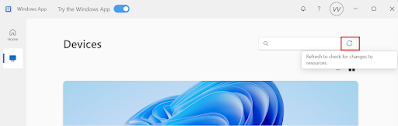
The Refresh button is used to clear the local cache and refresh to pull the new device assignments from the Intune.User can click on the refresh button that can be found next to the device name in the Windows App to manually trigger the refresh and clear the cache.


SSO Lock Screen Experience:

The Latest version now provides an Improved experience for the single sign-on SSO Lock Screen dialogs.

Microsoft have released a new feature that shows the Lock Screen when the session is timed out due to inactivity or screen saver lock when SSO is enabled. Earlier windows 365 used to show the disconnect screen and prompt user for reconnect or cancel. 

More information can be checked about the latest SSO Lock Screen in my previous blog  here

Sunday, September 1, 2024

W365 - Configure the session lock behaviour for the cloud Pc when SSO is enabled in Intune

Configure the session lock behaviour for the cloud Pc when SSO is enabled in Intune:

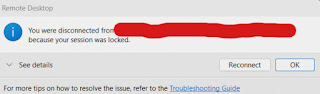
When single sign-on is enabled for the windows 365 provisioning policy and a remote session gets locked due to session inactivity for 15mins or screensaver settings enabled for 15mins then the session will get disconnected, and a notification will appear informing the user of the disconnection and show Reconnect or Ok to disconnect options like below.


Users can then select the Reconnect option from the dialog whenever they are ready to re-establish the session. It will not ask to re-enter the credentials again and will open the session immediately.

This was a known issue and many users were complaining about this - W365 Known Issue

However Microsoft has released a new feature that enables the remote lock screen experience even when SSO is enabled and when the session gets locked due to inactivity or screen saver settings - What's New in W365


PreReq for Win 11:

Steps to configure the session lock behaviour on session hosts using Intune:

  1. Open Microsoft Intune admin center.

  2. Select Devices > Manage devices > Configuration > Create > New policy.

  3. Select Platform as Windows 10 and later and Profile type as Settings catalog.

  4. In Basics, enter the Name and valid Description.

  5. In Configuration settings, select Add settings. Then:

    1. In the settings picker, expand Administrative Templates > Windows Components > Remote Desktop Services > Remote Desktop Session Host > Security.

    2. Select the Disconnect remote session on lock for Microsoft identity platform authentication setting.

    3. Close the settings picker.


       6. Configure the setting to "Disabled" to show the remote lock screen when the session locks.


      7. Select Next.

      8. Add the Scope tags and Assignments and select Create.

      9. Once the policy configuration is created, the setting will take effect after the session hosts sync              with Intune and users initiate a new session or restart the cloud pc.

Alternatively this can be done using the below registry keys.

Value DataDescription
0Show the remote lock screen.
1Disconnect the session.

Enable Screen Lock:

Windows Registry Editor Version 5.00

[HKEY_LOCAL_MACHINE\SOFTWARE\Policies\Microsoft\Windows NT\Terminal Services]
"fdisconnectonlockmicrosoftidentity"=dword:00000000

Disconnect the session:

Windows Registry Editor Version 5.00

[HKEY_LOCAL_MACHINE\SOFTWARE\Policies\Microsoft\Windows NT\Terminal Services]
"fdisconnectonlockmicrosoftidentity"=dword:00000001

PowerShell Scripts:


Microsoft recommendation:

Microsoft recommends to use the default disconnect when using the SSO due to its security benefits, which are highly recommended and expected by many customers:

Consistent sign-in experience through Microsoft Entra ID when needed.
Single sign-on experience and reconnection without authentication prompt when allowed by conditional access policies.
Supports passwordless authentication like passkeys and FIDO2 devices, contrary to the remote lock screen.
The Conditional access policies, including multifactor authentication and sign-in frequency, are re-evaluated when the user reconnects to their session.
Can require multi-factor authentication to return to the session and prevent users from unlocking with a simple username and password.

Especially, When using the new Remote lock screen it won't re-evaluate Conditional access policies.
So for e.g. if the sign-in frequency has already timed out, it won't be checked again until the user is disconnected but this won't happen when using the default disconnect on lock feature.

Tuesday, August 20, 2024

W365: Case study 2 - Resize windows 365 cloud pc during Grace Period

Continuation from Case Study 1

Scenario 2:

  • The cloud pc is placed under Grace period.
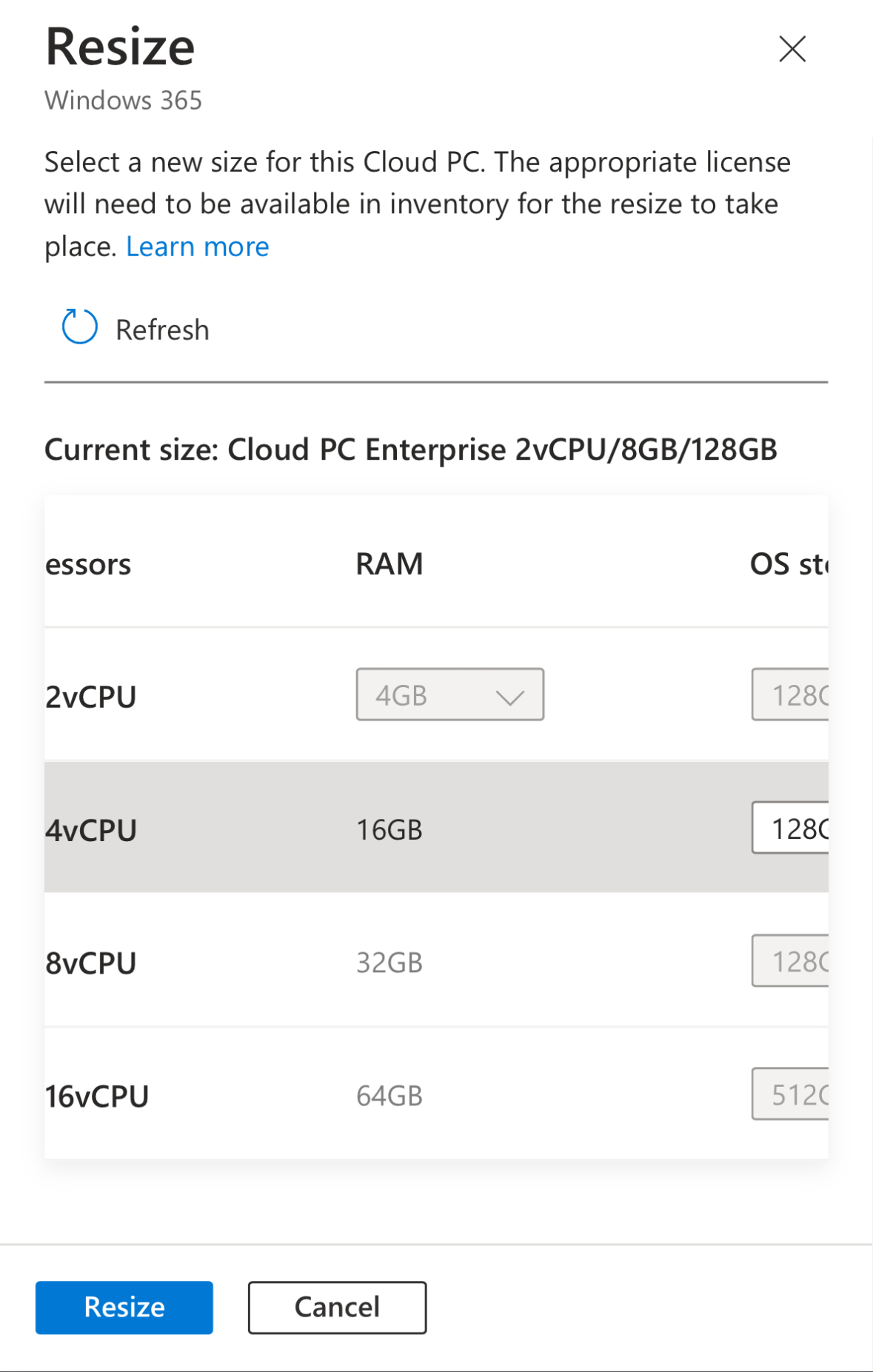
  • Click on the cloud pc and click on resize option and choose another higher SKU.

  • Click on Resize and it shows a notification that it failed with the below reason.

  • The cloud pc doesn’t move to resize pending license state.
  • The cloud pc gets deprovisioned and cloud pc is removed once grace period reaches its end time.
  • The operating system and data are deleted from the Cloud PC. The Cloud PC is no longer available.
  • Resize failed to proceed in this scenario.

Detailed background information:

If a Windows 365 Cloud PC is in a grace period and you attempt to resize it to a higher SKU, the operation will not work as intended. During the grace period, the Cloud PC is in a state where it's essentially marked for deprovisioning, and resizing is not allowed with below error message.


When a Windows 365 Cloud PC is in the grace period and you attempt to resize it to a higher SKU, the following typically happens:

1. Resize Operation Fails: The Cloud PC does not move to a "resize pending license" state because it is already in a grace period, which restricts such operations. The resize request is likely to fail since the Cloud PC is marked for deprovisioning due to issues like an expired or suspended license.

2. Cloud PC Status Remains Unchanged: The Cloud PC remains in the grace period, and no changes are made to its configuration. The system will not attempt to apply the resize until the underlying issue causing the grace period is resolved.

3. Action Required: To successfully resize the Cloud PC, you need to reinstate the user to the older SKU license or replace with a different policy, the Cloud PC will be reprovisioned with the settings in the new policy. Once the Cloud PC is out of the grace period, you can then apply the resize operation.

Note: If in Grace period, if you assign the user to higher SKU group, without going for resize option then the cloud pc will be reprovisioned with the settings in the new policy.

To ensure a smooth transition when resizing a Cloud PC, the device should not be in the grace period. If you need to resize the Cloud PC, you must first reinstate the license. This process helps to avoid any potential conflicts or issues with the Cloud PC's provisioning and ensures that the operation proceeds correctly.

Saturday, August 17, 2024

Intune & macOS: .app .pkg .dmg file is blocked by Gatekeeper

Understanding Gatekeeper in macOS and How to Bypass Its Prompts

Gatekeeper is a security feature in macOS designed to protect your system from untrusted software by verifying the source of apps, PKG, and DMG files. When you try to open a file from an unverified source, macOS may show a Gatekeeper prompt, even if the file is legitimate.

What is Gatekeeper?

Gatekeeper controls what software can be installed on your Mac, ensuring that apps are from the App Store or identified developers. It checks for a digital signature to verify that the app hasn’t been tampered with and is safe to run.


How to Resolve Gatekeeper Prompts:

If you encounter a Gatekeeper prompt despite the file being genuine, you can bypass it by checking and removing the quarantine attribute, which Gatekeeper uses to track downloaded files.

1. Check for Quarantine Attribute:
   Run the following command in Terminal to see if the file is quarantined:

xattr /path/to/App.dmg

2. Remove the Quarantine Attribute:
   If the quarantine attribute (`com.apple.quarantine`) is present, remove it by running:

xattr -dr com.apple.quarantine /path/to/App.dmg
   
   
This command removes the quarantine attribute from the file, allowing it to open without Gatekeeper blocking it.

Applying This Solution to .app, .pkg, and .dmg Files

The same process can be applied to any app, PKG, or DMG file. Simply replace the file path in the commands with the appropriate file's path on your system. This method helps bypass Gatekeeper's restrictions when you know the file is safe but still encounter warnings.