Showing posts with label ContextMenu. Show all posts

Wednesday, October 18, 2023

Solution: TortoiseSVN Background contextmenu not visible after publishing

After publishing the App-V sequenced TortoiseSVN, all the context menu shortcuts are visible and it works fine. Only the background context menu option is not visible. In this blog, I will demonstrate and provide a solution for it.


First download the TortoiseSVN software from the below link.
https://tortoisesvn.net/downloads.html


Download the Latest windows ADK so that we can use the latest App-V Sequencer from the below link.
https://docs.microsoft.com/en-us/windows-hardware/get-started/adk-install


Sequence the TortoiseSVN application using default steps.


Even if you use PVAD when sequencing, we can see the same issue that the background context menu is not visible after publishing.
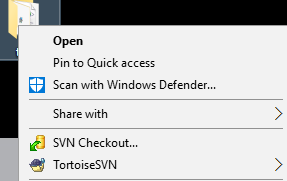
After Publishing the sequenced package, we can see that when we right click file\folder\drive the context menu option is visible as App-V will install those respective registry entries in the local machine and they will be used by the explorer due to dynamic virtualization concept.


FILE:
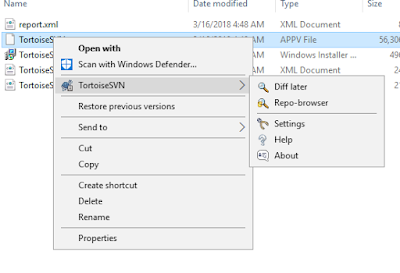


FOLDER:


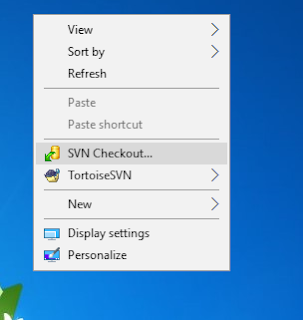
But when we right click on empty explorer window or inside any folder empty place, the below options are not visible as seen in the native installed package.


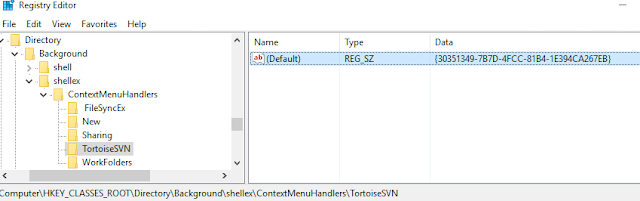
We can see that in the sequencer machine, the following registry responsible for the background context menu is registered in the local machine.


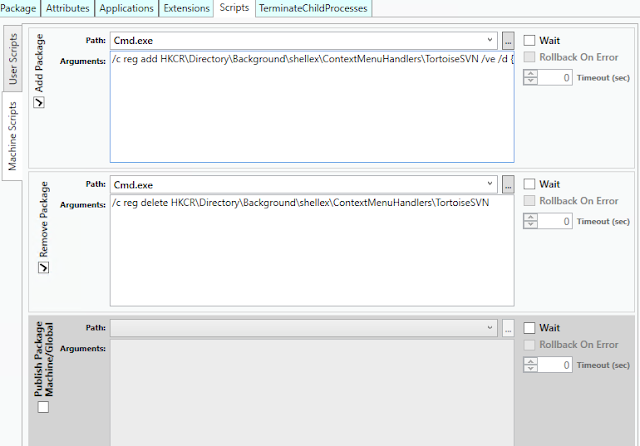
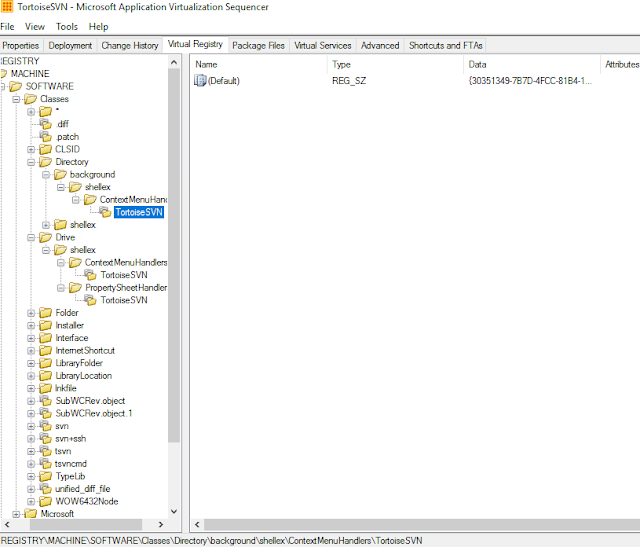
Even in the package editor we can see that those registry keys are captured.


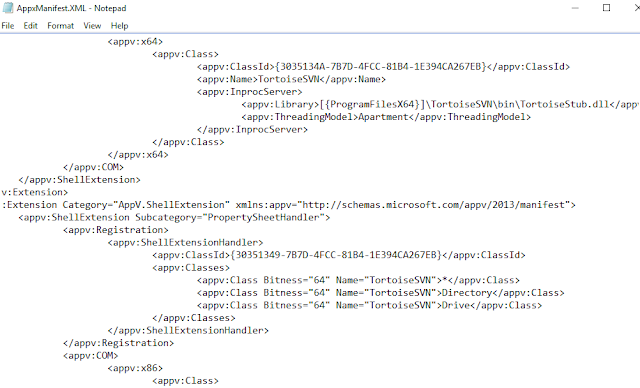
Even in the AppxManifest file we can see those shell entries.
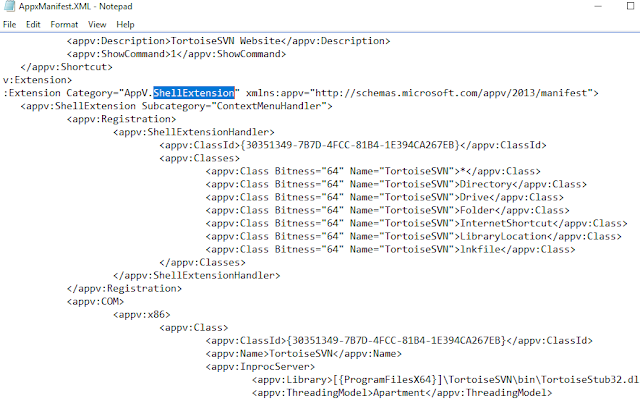


But after publishing and seeing the local HKCR registry, the particular key alone is missing. All other context menu registries are visible.
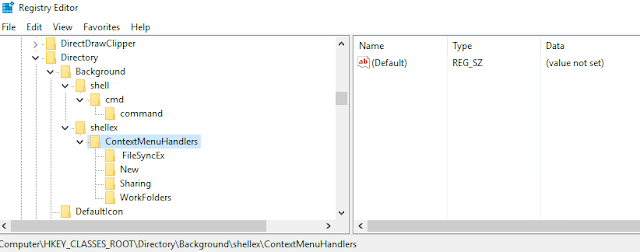


Windows Registry Editor Version 5.00

[HKEY_CLASSES_ROOT\Directory\Background\shellex\ContextMenuHandlers\TortoiseSVN]
@="{30351349-7B7D-4FCC-81B4-1E394CA267EB}"


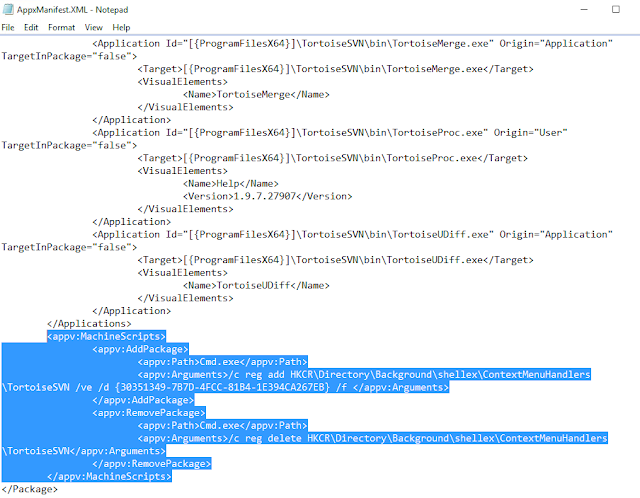
To Fix the issue, copy the above registry key and install in native machine.To Add it with the sequenced package, first export the AppxManifest.xml file and edit it using AVME from the below link.


Edit the XML file and add like below in AddPackage and Remove Package tabs.


Once done save the AppxManifest.xml file and import it back to the package using sequencer.


Save the package and publish it to the client machine. Now you can see the context menu when you click on empty explorer window or empty space inside directory.
You can also add the registry using scripts in deploymentconfig/userconfig file too.

As pointed by Roy Essers in a TechNet post, this indeed seems to be App-V sequencer bug and MS needs to fix this soon.

Friday, December 23, 2016

Right Click and Publish App-V Package along with Dynamic Configuration File - Context Menu Shortcut


In my previous blog I had posted about a simple registry tweak to publish packages globally/User by just right clicking and selecting the option. But in that method, it will not use the dynamic configuration file. And so I have covered how to do that in this blog.


copy the below code in notepad and save it in .reg format. After saving, double click on it and register the keys.


Windows Registry Editor Version 5.00

[HKEY_CLASSES_ROOT\.appv]
@="appvex"

[HKEY_CLASSES_ROOT\appvex]

[HKEY_CLASSES_ROOT\appvex\shell]

[HKEY_CLASSES_ROOT\appvex\shell\Publish Globally]
@="&Publish Globally"

[HKEY_CLASSES_ROOT\appvex\shell\Publish Globally\command]
@="cmd /c start /b /wait powershell.exe -nologo -ExecutionPolicy bypass -file \"c:\\Publish globally.ps1\" \"%1\""

[HKEY_CLASSES_ROOT\appvex\shell\Publish to User]
@="Publish to &User"

[HKEY_CLASSES_ROOT\appvex\shell\Publish to User\command]
@="cmd /c start /b /wait powershell.exe -nologo -ExecutionPolicy bypass -file \"c:\\Publish to user.ps1\" \"%1\""


Publish Globally:


Copy the below code in a notepad and save it as Publish globally.ps1. Place this file in C:\ drive. If you are planning to keep it elsewhere, then edit the registry entry accordingly.


#Import App-V Client Module
Import-Module AppvClient

#Enable execution of scripts
Set-AppvClientConfiguration -EnablePackageScripts 1


#get appvfile

$appvfile = "$args"

Write-Host $appvfile

#get appv file location

$appvlocation = $appvfile.lastindexof("\")

$location = $appvfile.substring(0,$appvlocation)

Write-Host $location

Write-Host "Path is valid = $(Test-Path $location)"

Set-Location $location 

#get _Deploymentconfig file

ForEach ($file in "$location") 

{
$Name=Get-ChildItem $file
  for ($i = 0; $i -lt $Name.count; $i++)
  {
   
    if ($Name[$i].Extension -eq ".xml")
   {
    $xmlFileName = $Name[$i].FullName
    if ($xmlFileName.contains("_DeploymentConfig"))
    {
     $deploymentconfigfile = $xmlFileName
Write-Host "$deploymentconfigfile"

    }
    
    
   }

  }


Add-AppvClientPackage -path $appvfile -DynamicDeploymentConfiguration "$deploymentconfigfile" | Publish-AppvClientPackage -Global  | Mount-AppvClientPackage 

}


Publish to User:

Copy the below code in a notepad and save it as Publish to user.ps1. Place this file in C:\ drive. If you are planning to keep it elsewhere, then edit the registry entry accordingly.


#Import App-V Client Module
Import-Module AppvClient

#Enable execution of scripts
Set-AppvClientConfiguration -EnablePackageScripts 1


#get appvfile

$appvfile = "$args"

Write-Host $appvfile

#get appv file location

$appvlocation = $appvfile.lastindexof("\")

$location = $appvfile.substring(0,$appvlocation)

Write-Host $location

Write-Host "Path is valid = $(Test-Path $location)"

Set-Location $location 

#get _userconfig file

ForEach ($file in "$location") 

{
$Name=Get-ChildItem $file
  for ($i = 0; $i -lt $Name.count; $i++)
  {
   
    if ($Name[$i].Extension -eq ".xml")
   {
    $xmlFileName = $Name[$i].FullName
    if ($xmlFileName.contains("_UserConfig"))
    {
     $UserConfigfile = $xmlFileName
Write-Host "$UserConfigfile"

    }
    
    
   }

  }


Add-AppvClientPackage -path $appvfile | Publish-AppvClientPackage -DynamicUserConfigurationPath "$UserConfigfile"| Mount-AppvClientPackage 

}


Context Menu Preview:


When you right click any .appv file, it will show the below two context menu shortcuts.If you want to publish globally along with the deploymentconfig file then click on Publish Globally and to publish to a user along with the Userconfig file then click on Publish to User.


Right-Click and Publish AppV packages using ContextMenu Shortcut - A simple registry hack

I always wanted a simple trick to install the App-V virtual packages in a single click without any need to open powershell and type commands in a standalone machine. I have worked on many software's and  used to see some of them provide context menu shortcut (notepad++, winzip etc..) So I had an idea to create a simple registry tweak to publish the virtual packages either globally or to a user by just right clicking a .appv file using context menu option.

Copy the below code and save it in a notepad with .reg extension. Double click and register it.


Windows Registry Editor Version 5.00

[HKEY_CLASSES_ROOT\.appv]
@="appvex"

[HKEY_CLASSES_ROOT\appvex]

[HKEY_CLASSES_ROOT\appvex\shell]

[HKEY_CLASSES_ROOT\appvex\shell\Publish Globally]
@="&Publish Globally"

[HKEY_CLASSES_ROOT\appvex\shell\Publish Globally\command]
@="cmd /c start /b /wait powershell.exe  -nologo -ExecutionPolicy bypass -command \"& {add-appvclientpackage '%1' |publish-appvclientpackage -global|mount-appvclientpackage}\""

[HKEY_CLASSES_ROOT\appvex\shell\Publish to User]
@="Publish to &User"

[HKEY_CLASSES_ROOT\appvex\shell\Publish to User\command]
@="cmd /c start /b /wait powershell.exe  -nologo -ExecutionPolicy bypass -command \"& {add-appvclientpackage '%1' |publish-appvclientpackage |mount-appvclientpackage}\""


After registering the registry key, now you should be able to see the below highlighted context menu shortcut when you right-click any .appv file. To publish globally, click on the Publish Globally shortcut and vice versa.


Registry Peak:


Note: This doesn't add the dynamic configuration file while adding/publishing. I will post it separately in my next blog.


Disclaimer - Test it with caution as I don't hold any responsibility for any problem caused. This is issued for experimental purpose only.

Merry Christmas and a Happy New Year!!

If you would like to try on your own refer to the below link which can guide you.

Reference - http://www.howtogeek.com/107965/how-to-add-any-application-shortcut-to-windows-explorers-context-menu/