Showing posts with label Windows 10 update 1607. Show all posts

Wednesday, October 18, 2023

Solution: TortoiseSVN Background contextmenu not visible after publishing

After publishing the App-V sequenced TortoiseSVN, all the context menu shortcuts are visible and it works fine. Only the background context menu option is not visible. In this blog, I will demonstrate and provide a solution for it.


First download the TortoiseSVN software from the below link.
https://tortoisesvn.net/downloads.html


Download the Latest windows ADK so that we can use the latest App-V Sequencer from the below link.
https://docs.microsoft.com/en-us/windows-hardware/get-started/adk-install


Sequence the TortoiseSVN application using default steps.


Even if you use PVAD when sequencing, we can see the same issue that the background context menu is not visible after publishing.
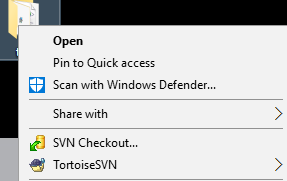
After Publishing the sequenced package, we can see that when we right click file\folder\drive the context menu option is visible as App-V will install those respective registry entries in the local machine and they will be used by the explorer due to dynamic virtualization concept.


FILE:
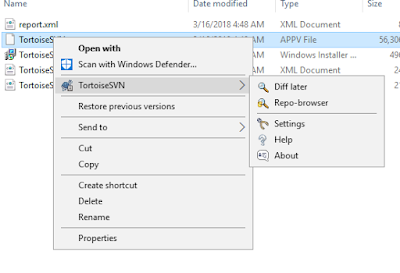


FOLDER:


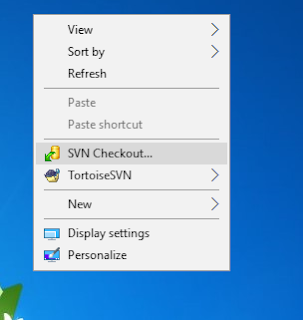
But when we right click on empty explorer window or inside any folder empty place, the below options are not visible as seen in the native installed package.


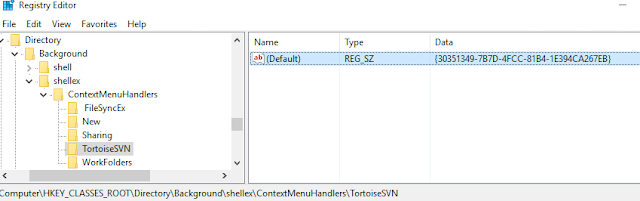
We can see that in the sequencer machine, the following registry responsible for the background context menu is registered in the local machine.


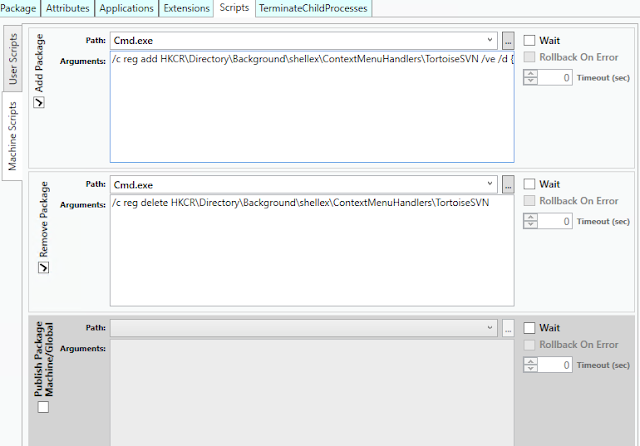
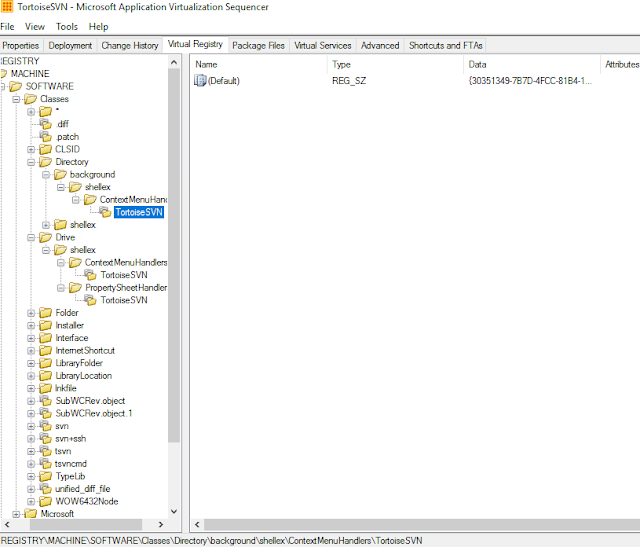
Even in the package editor we can see that those registry keys are captured.


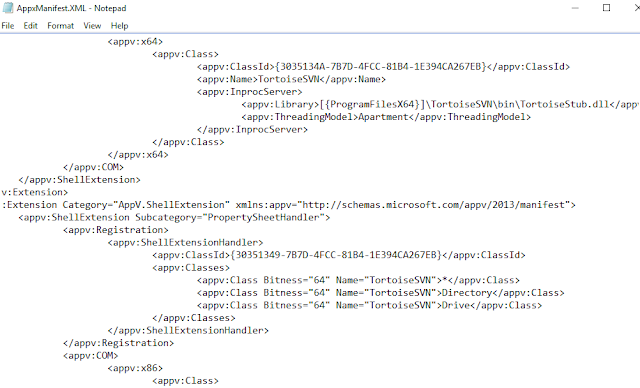
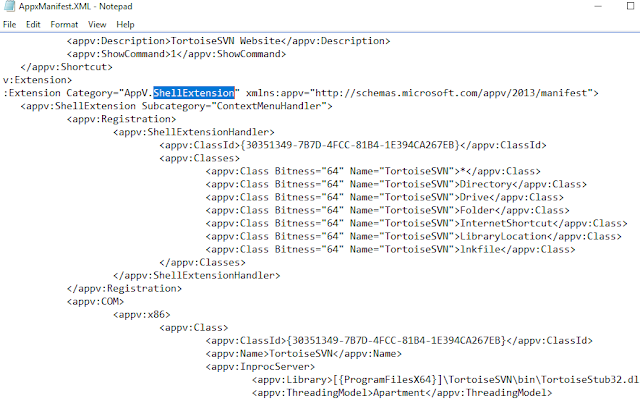
Even in the AppxManifest file we can see those shell entries.


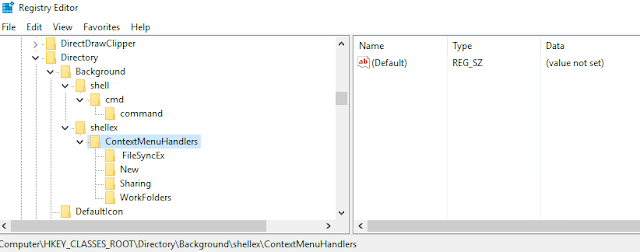
But after publishing and seeing the local HKCR registry, the particular key alone is missing. All other context menu registries are visible.


Windows Registry Editor Version 5.00

[HKEY_CLASSES_ROOT\Directory\Background\shellex\ContextMenuHandlers\TortoiseSVN]
@="{30351349-7B7D-4FCC-81B4-1E394CA267EB}"


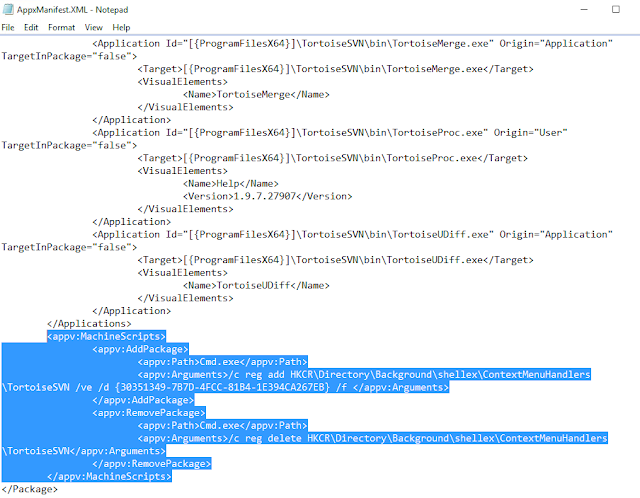
To Fix the issue, copy the above registry key and install in native machine.To Add it with the sequenced package, first export the AppxManifest.xml file and edit it using AVME from the below link.


Edit the XML file and add like below in AddPackage and Remove Package tabs.


Once done save the AppxManifest.xml file and import it back to the package using sequencer.


Save the package and publish it to the client machine. Now you can see the context menu when you click on empty explorer window or empty space inside directory.
You can also add the registry using scripts in deploymentconfig/userconfig file too.

As pointed by Roy Essers in a TechNet post, this indeed seems to be App-V sequencer bug and MS needs to fix this soon.

Tuesday, March 6, 2018

HotFix Released: App-V Applications worked in win 10 1607 fails in win 10 1703

Many packages that completely worked in inbox App-V in windows 10 1607 failed after upgrading to windows 10 1703. The reason for failure is due to Microsoft changed the way to load registries in containers CREG instead of usual virtual registry VREG.

There was a temporary fix which was available and Roy Essers posted it in twitter a long back.
It was adding the below registry entry manually in the 1703/1709 machines.


[HKEY_LOCAL_MACHINE\SOFTWARE\Microsoft\AppV\Client\Compatibility]
"RegistryCompatibilityMode"=dword:00000001


This issue is fixed in windows 10 1703 with the new hotfix released.


https://support.microsoft.com/en-us/help/4077528


We can clearly see that they have made use of the temporary fix to change the registry virtualization to use the VREG instead of the modern CREG that was mentioned earlier to permanently fix this issue.


Apart from the registry fix, this update also fixes many other App-V issues which can bee seen below.


This update will be downloaded and installed automatically from Windows Update.

Wednesday, February 14, 2018

App-V: Virtual Packages works in win 10 1607 but fails in windows 10 1703/1709

Many packages that completely worked in inbox App-V in windows 10 1607 failed after upgrading to windows 10 1703 and 1709 versions. The reason for failure is due to Microsoft changed the way to load registries in containers CREG instead of usual virtual registry VREG. To know about this change do have a look at the below articles from Tim Mangan.

http://www.tmurgent.com/TmBlog/?p=2692
http://www.tmurgent.com/TmBlog/?p=2733

There was a temporary fix which was available and Roy Essers posted it in twitter a long back.
It was adding the below registry entry manually in the 1703/1709 machines.


[HKEY_LOCAL_MACHINE\SOFTWARE\Microsoft\AppV\Client\Compatibility]
"RegistryCompatibilityMode"=dword:00000001


Microsoft has released an update earlier today which is supposed to fix this registry mapping issue.
https://support.microsoft.com/en-us/help/4074588


We can clearly see that they have made use of the temporary fix to change the registry virtualization to use the VREG instead of the modern CREG that was mentioned earlier to permanently fix this issue.


Apart from the registry fix, this update also fixes many other App-V issues which can bee seen below.


This update will be downloaded and installed automatically from Windows Update. If you would like to use the standalone package for this update, download it from the below link.


http://www.catalog.update.microsoft.com/Search.aspx?q=KB4074588

NOTE: This fix is supposed to be only for windows 10 1709. The article haven't mentioned anything about windows 10 1703. Will do a check in windows 10 1703/1709 and update how the fix has really helped to solve the issue.


Update: This issue is also fixed in windows 10 1703 with the new hotfix released.


https://support.microsoft.com/en-us/help/4077528


Friday, November 25, 2016

Advanced Installer 13.3 - fixes MSI launch condition issue in Windows 10 anniversary update 1607

Earlier when trying to install the Advanced Installer created virtual package through MSI format in windows 10 anniversary update 1607, it failed to install with the below error.


This issue is caused because of a launch condition in MSI which has been set to check for App-V client installed as a pre-requisite. Since App-V comes inbox with windows 10 v1607, the pre-req check fails with the above error.

This was a known issue even with App-V created packages and it was reported back to Microsoft.

Meantime I had a chance to talk with the Advanced Installer team about this issue. They quickly reported that they will look into this issue ASAP and come back with a fix. To my wonder they released an update within a short time period. You can have a look on their release note about this bug fix.

http://www.advancedinstaller.com/release-13.3.html

Now using Advanced Installer 13.3 when you create a virtual package and use the MSI to install in windows 10 1607, it installs fine without any issue. I tested with few apps sequenced by Advanced Installer 13.3 and found it to be 100% success.


So I looked into the MSI created after virtualizing and saw that it had the same launch condition but with a different approach. They have used the APPV_5X_CLIENT_INSTALLED property which has been set using AppSearch.


In this case they have used to locate the registry existence (HKLM\Software\Microsoft\AppV\Client).


Since windows 10 has inbuilt App-V, it  has a registry for AppV with version 5.2.0.0 by default.


Now when you install the new Advanced Installer 13.3 created virtual package MSI, the launch condition gets satisfied as there is a registry key with a valid  version and so it gets installed successfully.


For earlier versions, it still fails. For now you can fix it using the below solutions.


Solution - Virtual applications packaged into MSI format doesn’t install on inbox App-V client in Windows 10 Anniversary update 1607


UPDATED LINK -https://technet.microsoft.com/en-us/itpro/windows/manage/appv-release-notes-for-appv-for-windows

Monday, October 24, 2016

Solution - Virtual applications packaged into MSI format doesn’t install on inbox App-V client in Windows 10 Anniversary update 1607

We see that the solution provided in the link from Microsoft for the msi (sequenced with App-V 5.1 or earlier) failure in windows 10 v1607 doesn't seem to fix the issue.


https://technet.microsoft.com/en-us/itpro/windows/manage/appv-release-notes-for-appv-for-windows

We see the below Msidb.exe not found error running the command as said in the link.


When checked for Msidb.exe, it was found in c:\program files(x86)\windows kits\10\bin. Changed the -msidbpath to c:\program files(x86)\windows kits\10\bin and tested. It fails too. Changed it to c:\program files(x86)\windows kits\10\bin\msidb.exe. It fails too.


The update-AppvMsiPackage.ps1 from C:\Program Files (x86)\Windows Kits\10\Microsoft Application Virtualization\Sequencer seems to look for the location c:\program files(x86)\windows kits\10\bin\msidb.exe which is not located after installing the windows 10 sdk. The actual path where the msidb.exe is located after installing windows 10 sdk is c:\program files(x86)\windows kits\10\bin\x86\msidb.exe


The above highlighted code needs to be changed to $msidbExe = Join-Path -Path $msSdkPath -ChildPath "Bin\x86\MsiDb.exe"

Save the modified code and run the command. Now the solution works fine and the MSI gets updated.