Wednesday, January 10, 2024

w365: Embracing the Future: Switching to Windows 365 and Its Benefits

In the ever-evolving landscape of modern work environments, businesses seek innovative solutions that offer flexibility, security, and efficiency. Windows 365 emerges as a game-changer, revolutionizing how organizations operate by providing a seamless, cloud-based PC experience. This blog explores what Windows 365 is, why it’s beneficial, and how switching to this platform can transform your business.


 What is Windows 365?


Windows 365 is Microsoft’s cloud-based service that streams a full Windows experience from the Microsoft Cloud to any device. It essentially transforms your physical device into a high-performance cloud PC. With Windows 365, users can access their personalized Windows environment, including apps, data, and settings, from anywhere and on any device with an internet connection. Windows 365 is managed through Intune whereas Azure virtual desktop is managed through Azure portal. 


Key Benefits of Switching to Windows 365


1. Enhanced Flexibility and Accessibility


One of the primary advantages of Windows 365 is the ability to access your desktop from anywhere. Whether you're working from home, a coffee shop, or traveling, you can log into your cloud PC and pick up right where you left off. This flexibility is crucial in today’s hybrid work environments, where employees are no longer confined to a single physical location.


2. Seamless User Experience


Windows 365 offers a consistent and personalized user experience. Your desktop, apps, and settings are always available and up-to-date, regardless of the device you're using. This eliminates the frustration of configuring settings or installing software repeatedly on different devices.


3. Improved Security


Security is a paramount concern for businesses of all sizes. Windows 365 leverages Microsoft’s robust security framework, providing enterprise-grade protection. Data is stored and processed in the cloud, reducing the risk of data loss or theft from physical devices. Additionally, features like multifactor authentication, secure boot, and Microsoft Defender for Endpoint ensure comprehensive security.


4. Simplified Management and Maintenance


Managing and maintaining physical hardware can be complex and time-consuming. Windows 365 simplifies this by centralizing the management of cloud PCs. IT administrators can easily deploy, update, and manage cloud PCs through the Microsoft Endpoint Manager, reducing the overhead associated with traditional device management.


5. Scalability and Cost Efficiency


Windows 365 offers scalable solutions that can adapt to the changing needs of your business. You can quickly scale up or down based on your workforce requirements without the need for significant capital investment in hardware. This scalability is particularly beneficial for businesses with fluctuating staffing needs or those experiencing rapid growth.


6. Enhanced Collaboration and Productivity


With Windows 365, collaboration becomes seamless. Employees can share and access files in real-time, using familiar tools like Microsoft Teams and OneDrive. This fosters a collaborative work environment, enhancing productivity and ensuring that teams stay connected and efficient, regardless of their physical location.


How to Transition to Windows 365

 Assess Your Needs


Before making the switch, assess your organization’s needs. Consider factors such as the number of users, required computing power, and specific business applications.

Plan and Prepare


Develop a transition plan that outlines the steps for migrating to Windows 365. Ensure you have the necessary infrastructure, including reliable internet connectivity and compatible devices.

 Train Your Team


Provide training sessions to help your team understand how to use Windows 365 effectively. This will ensure a smooth transition and help employees leverage the platform’s full potential.

Implement and Monitor


Deploy Windows 365 across your organization and monitor its performance. Gather feedback from users and make any necessary adjustments to optimize the experience.

Conclusion


Switching to Windows 365 represents a strategic move towards a more flexible, secure, and efficient work environment. By embracing this innovative platform, businesses can unlock new levels of productivity, collaboration, and scalability. As the future of work continues to evolve, Windows 365 stands out as a vital tool for organizations aiming to stay ahead in a dynamic and competitive landscape.


Explore the possibilities with Windows 365 and take the first step towards transforming your business into a modern, cloud-powered powerhouse.
Wednesday, October 18, 2023

Solution: TortoiseSVN Background contextmenu not visible after publishing

After publishing the App-V sequenced TortoiseSVN, all the context menu shortcuts are visible and it works fine. Only the background context menu option is not visible. In this blog, I will demonstrate and provide a solution for it.


First download the TortoiseSVN software from the below link.
https://tortoisesvn.net/downloads.html


Download the Latest windows ADK so that we can use the latest App-V Sequencer from the below link.
https://docs.microsoft.com/en-us/windows-hardware/get-started/adk-install


Sequence the TortoiseSVN application using default steps.


Even if you use PVAD when sequencing, we can see the same issue that the background context menu is not visible after publishing.
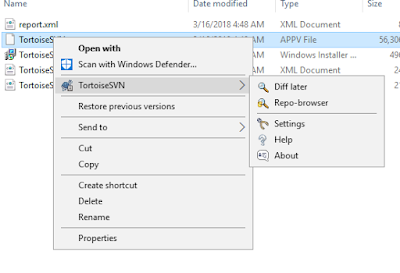
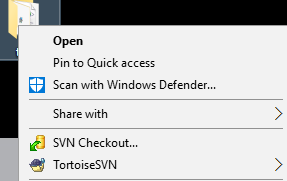
After Publishing the sequenced package, we can see that when we right click file\folder\drive the context menu option is visible as App-V will install those respective registry entries in the local machine and they will be used by the explorer due to dynamic virtualization concept.


FILE:


FOLDER:


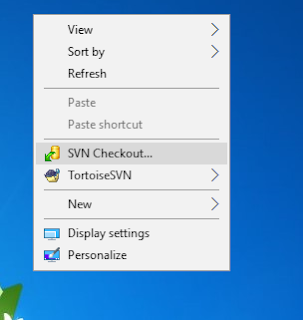
But when we right click on empty explorer window or inside any folder empty place, the below options are not visible as seen in the native installed package.


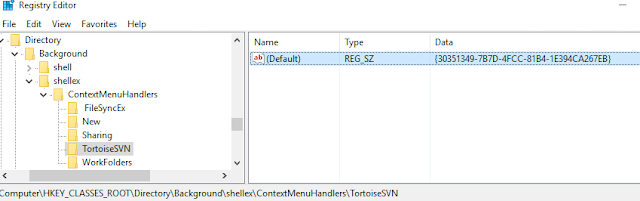
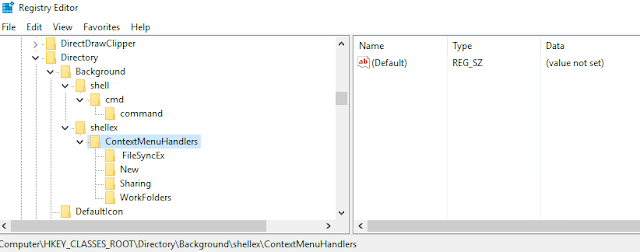
We can see that in the sequencer machine, the following registry responsible for the background context menu is registered in the local machine.


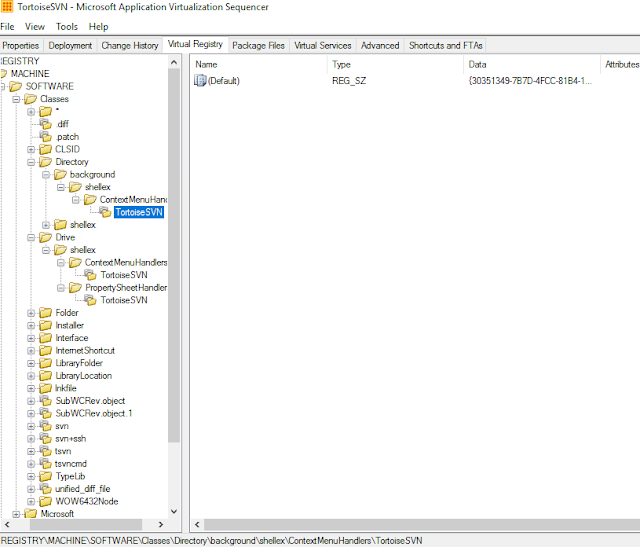
Even in the package editor we can see that those registry keys are captured.


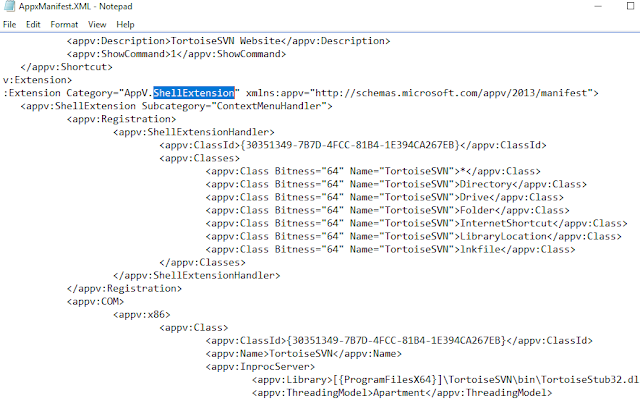
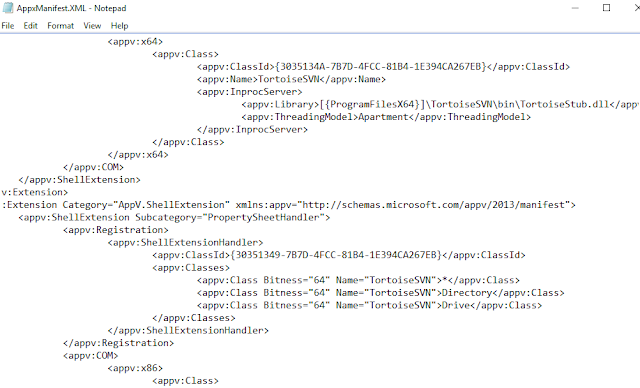
Even in the AppxManifest file we can see those shell entries.


But after publishing and seeing the local HKCR registry, the particular key alone is missing. All other context menu registries are visible.


Windows Registry Editor Version 5.00

[HKEY_CLASSES_ROOT\Directory\Background\shellex\ContextMenuHandlers\TortoiseSVN]
@="{30351349-7B7D-4FCC-81B4-1E394CA267EB}"


To Fix the issue, copy the above registry key and install in native machine.To Add it with the sequenced package, first export the AppxManifest.xml file and edit it using AVME from the below link.


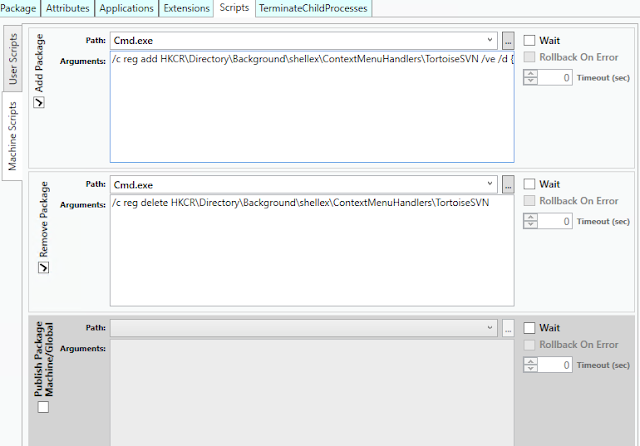
Edit the XML file and add like below in AddPackage and Remove Package tabs.


Once done save the AppxManifest.xml file and import it back to the package using sequencer.


Save the package and publish it to the client machine. Now you can see the context menu when you click on empty explorer window or empty space inside directory.
You can also add the registry using scripts in deploymentconfig/userconfig file too.

As pointed by Roy Essers in a TechNet post, this indeed seems to be App-V sequencer bug and MS needs to fix this soon.

Wednesday, September 13, 2023

Solution: COM Addin failure with Locally installed MS Office 2016 c2r

These days I see many queries in Microsoft technet forum related to COM Addin's not getting loaded into locally installed MS Office 2016 c2r version. So to help others, I have listed the possible solutions which I have gathered from my experience and from other blog posts in a single article below.

ISSUE:

1. Sequence Microsoft Office 2016 addin's using App-V 5.1 Sequencer
2. Publish the sequenced addin's package in the client side which has App-V 5.1 client and  Microsoft Office 2016 c2r locally installed
3. Launch the Microsoft Office 2016 c2r Word/Excel using /appvve: or RunVirtual registry key to load them into the  published addin's virtual environment to test the addin's.
4. we see that the addin is not loaded.

You can find a similar possible reason for failure in the below link.
https://support.microsoft.com/en-us/help/3159732/click-to-join-fails-to-invoke-skype-for-business-on-computers-that-us

"The ProcessesUsingVirtualComponents registry value specifies a list of process paths that are candidates for using dynamic virtualization (supported shell extensions, browser helper objects, and ActiveX controls). Only processes whose full path matches one of these items can use dynamic virtualization.

By default, Explorer.exe and Internet Explorer are listed there. Therefore, when the iexplore.exe process runs, it has the APPVEntsubsystem32.dllloaded in Internet Explorer. When Office C2R detects that APPVEntsubsystem32.dll is loaded into Internet Explorer, it does not load jitv.dll or APPVISVSubsystem32.dll into Internet Explorer. As a result, there is no registry redirection support.

When the JavaScript that's running in Internet Explorer tries to create any ActiveX objects that are part of the Office C2R package, that operation fails and the Office C2R and SharePoint integration are broken. Office C2R and App-V dynamic virtualization aren’t designed to co-exist; therefore, Office C2R disables Dynamic Virtualization when it detects that AppV client binaries are loaded in Internet Explorer to prevent double hooking."


Solution 1:

Create the AllowJitvInAppvVirtualizedProcess registry key as shown below to fix this known issue.


Windows Registry Editor Version 5.00

[HKEY_LOCAL_MACHINE\SOFTWARE\Microsoft\ClickToRun\OverRide]
"AllowJitvInAppvVirtualizedProcess"=dword:00000001

If it doesn't work try in wow6432Node registry.


Windows Registry Editor Version 5.00

[HKEY_LOCAL_MACHINE\SOFTWARE\Wow6432Node\Microsoft\ClickToRun\OverRide]
"AllowJitvInAppvVirtualizedProcess"=dword:00000001


Solution 2:

If Solution 1 doesn't work , try with the latest App-V 5.1 Hot Fix. Always make sure to use the latest App-V 5.1 Hot Fix. (A minimum of Hot Fix 4 is required for this issue to be resolved.)

You can download the latest Hot Fix here: KB4018510

NOTE: Fixes that are delivered to the “out-of-box” versions of App-V and UE-V are first delivered for the “in-box” versions of App-V and UE-V in the monthly Windows 10 cumulative updates.Since updates are provided to windows 10 in-box App-V client first, it will not require the installation of the latest Hot-Fix. But the AllowJitvInAppvVirtualizedProcess registry key is required.

Solution 3: 

If Solution 1 & Solution 2 doesn't work then open the sequenced package using App-V 5.1 sequencer and expand it to local from the tool menu.

https://blogs.technet.microsoft.com/gladiatormsft/2013/10/25/appv-on-devirtualization/

Once it is de-virtualized, check whether the addin works. If it doesn't work then there is some file/registry missing.In this case, procmon or spystudio can help in troubleshooting.

Solution 4: ( Credits: Roy Essers)

If running on 64-bit windows then export the full hive HKEY_LOCAL_MACHINE\SOFTWARE\Microsoft\Office\ClickToRun\REGISTRY, and import it into HKEY_LOCAL_MACHINE\SOFTWARE\WOW6432Node\Microsoft\Office\ClickToRun\REGISTRY.

NOTE: This must be done every time office updates.

I believe mostly Solution 1 & Solution 2 will fix the issue if the package has been properly sequenced.

Related Articles:

http://packageology.com/2016/08/office-365-app-v/
http://www.applepie.se/tag/allowjitvinappvvirtualizedprocess

Wednesday, March 8, 2023

MSIX Packaging Tool- 0x80131500 when building

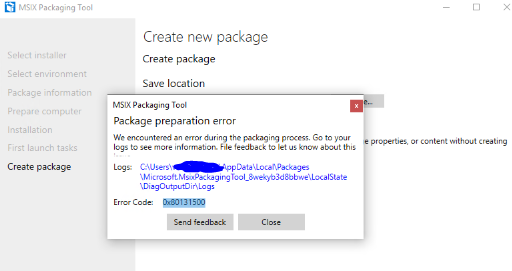
Recently tested converting TortoiseSVN msi package to MSIX using MSIX Package converter. Everything worked fine during monitoring phase and during build the tool struck up and showed an error code 0x80131500.


Capture.PNG


When checked for the msix log file it showed error stating duplicate ID's in the Appx manifest file.


[3/7/2019 6:38:14 AM] [Error] ERROR: PRI191: 0x80080204 - Appx manifest not found or is invalid. Please ensure well-formed manifest file is present. Or specify an index name with /in switch.

[3/7/2019 6:38:14 AM] [Error]

[3/7/2019 6:38:14 AM] [Error] error C00CE1A1: App manifest validation error: The app manifest must be valid as per schema: Line 20, Column 2554, Reason: 'f26e2640-0cff-43dc-8325-575a3261d885' is a duplicate key for the unique Identity Constraint '{http://schemas.microsoft.com/appx/manifest/foundation/windows10}Class_Id'.

[3/7/2019 6:38:14 AM] [Error]

Since there was no output generated other than the log file, it was hard to find a solution. So when checked in MSIX Techcommunity it seems it is an issue with MSIX tool build v1.2019.110.0. This issue is resolved in latest insider build v1.2019.304.0.


Thanks to JamesPike & Tim Mangan for confirming this issue and its resolution.


Release Notes : https://docs.microsoft.com/en-us/windows/msix/packaging-tool/release-notes/history


Download Free MSIX Packaging Insider Tool : https://docs.microsoft.com/en-us/windows/msix/packaging-tool/insider-program


Join MSIX TechCommunity : https://techcommunity.microsoft.com/t5/MSIX/ct-p/MSIX